Anonymous Survey forms are not tied to an activity or session. Since the responses will be anonymous it is advised that you create a form with the Activity name and run reports for each form.
Step 1: Create an Anonymous form:
a) Go to Settings > Forms
b) Click on ‘Add New Form’
c) Select the type as ‘Anonymous Eval’

Step 2: If you are sending email through the HighMarksCe system follow Step 3 and Step 4
Other wise,
Step 2: How to send forms to the users via emails outside the HighMarksCe
Copy the URL of the survey form - the highlighted part on the screen shot below.
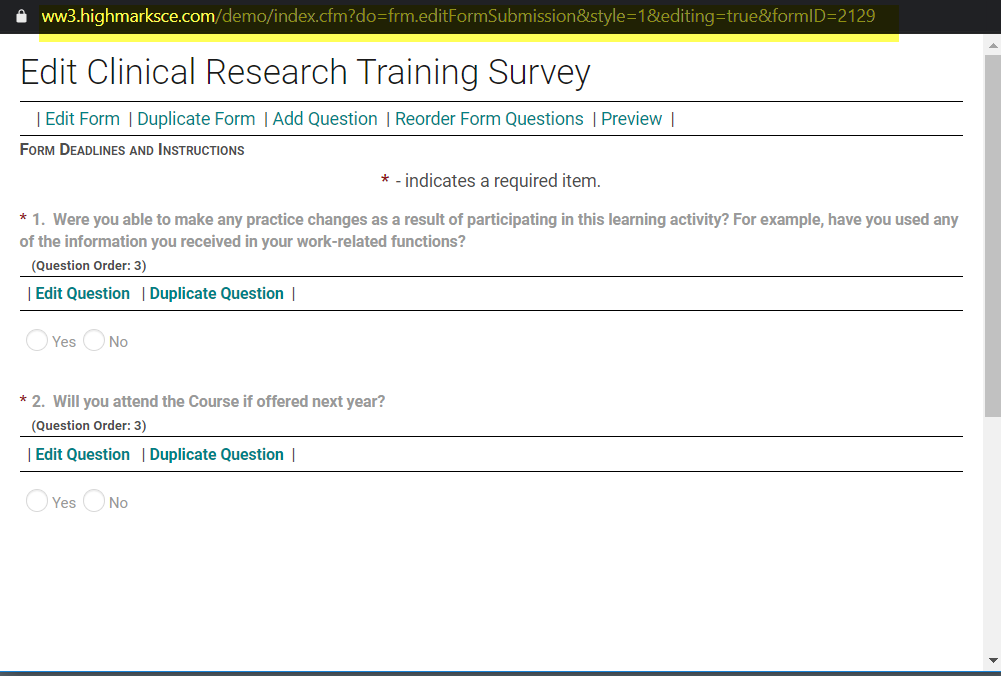
Normally the form URL looks like this: 
Paste the link in the body of the email and strip the highlighted portion. Send email to the desired people.
Continue to Step 5....
Step 3: Create an Email:
a) Go to Settings> Emails
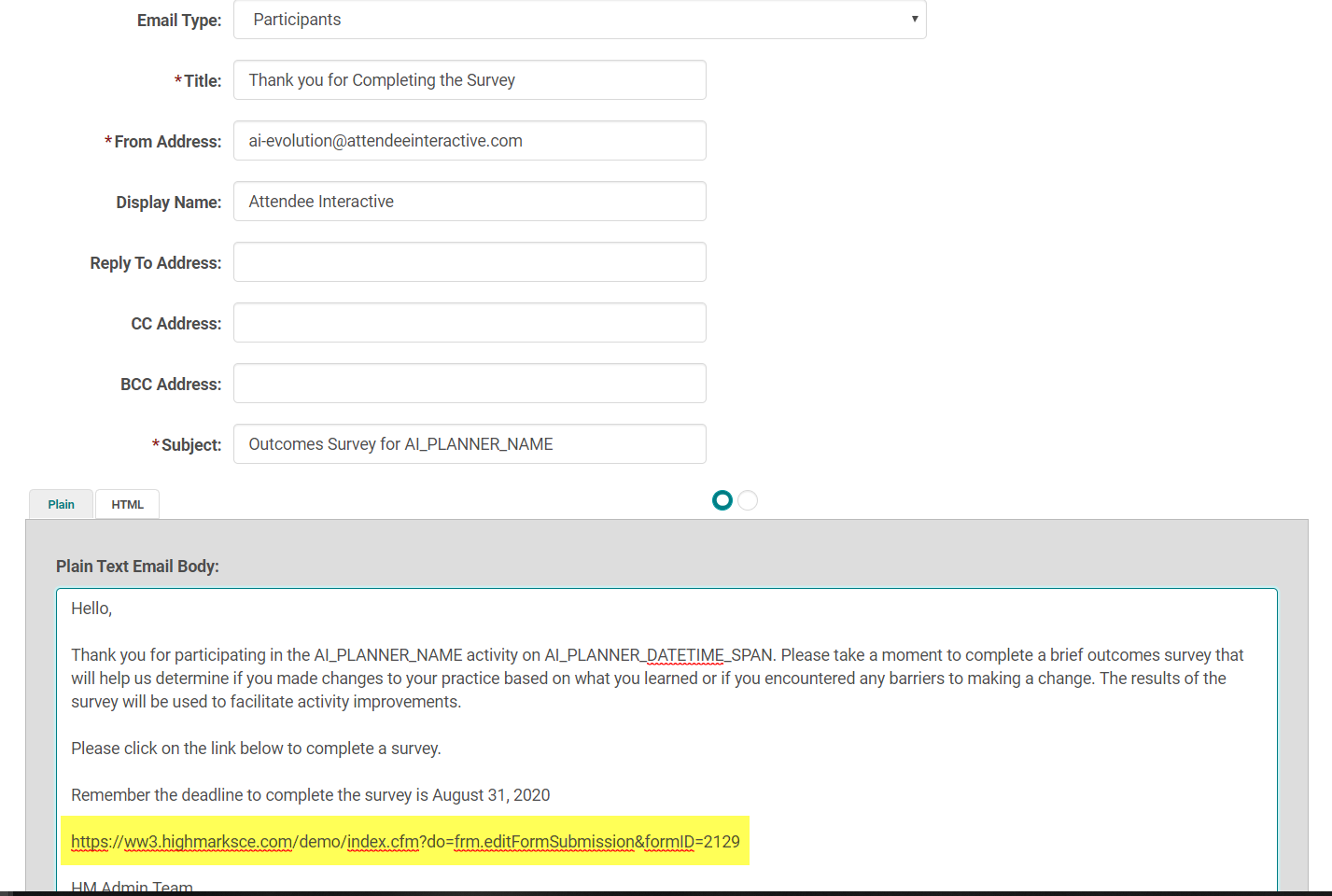
b) Draft an email that you would be using for sending the Survey forms
c) Copy the URL of the survey form
Normally the form URL looks like this:
strip the highlighted portion
d) Paste the URL on the email like shown below
Note:Make sure you copy the content both under the plain and the html tabs.
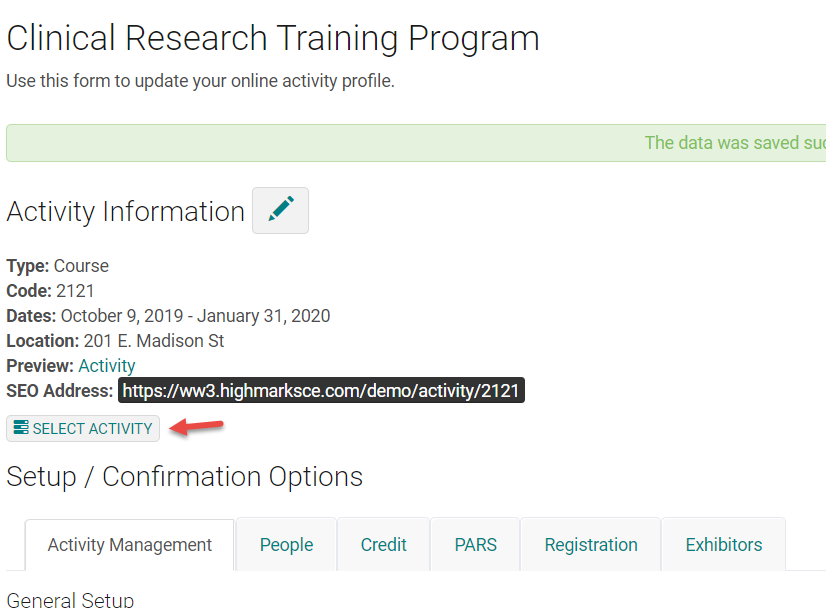
Step 4: Sending the email to the participants (Example Activity: Clinical Research Training Program)
a) Go to Activities> search for the activity and click on the ‘Select Activity’ switcher
b) Then go to Reports> Run Report
If you would like to send to the people who claimed credits, go to Sessions>CME Reports>Credits by Session > Run ReportIf you would like to send to people who were in the ActRegistrant role, whether claimed or not, go to People>Person Reports>Contact Info>Assigned Role : select the role; Activity: select the Activity> Run Report
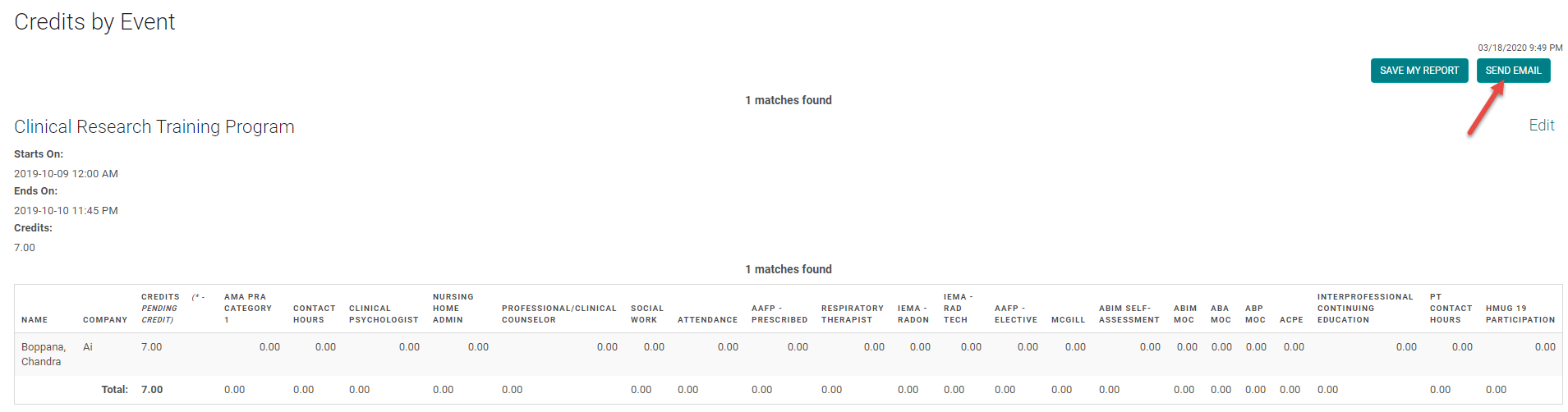
c) Click on 'Send Email'
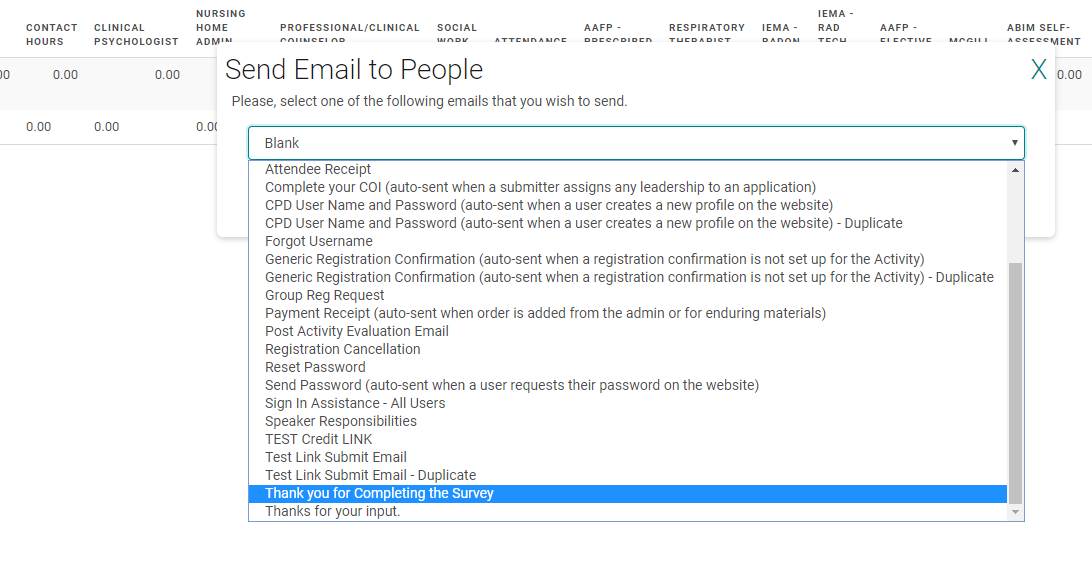
d) Select the Survey email
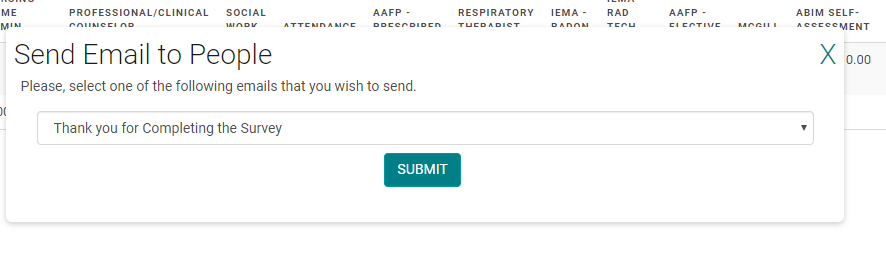
e) Click ‘Submit’
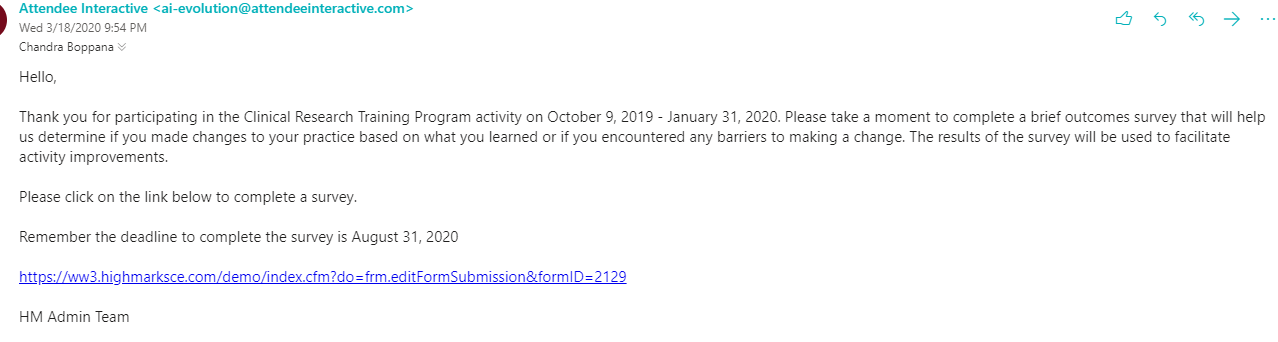
Step 5: Participants complete the survey:
Participants receive the email with the survey link
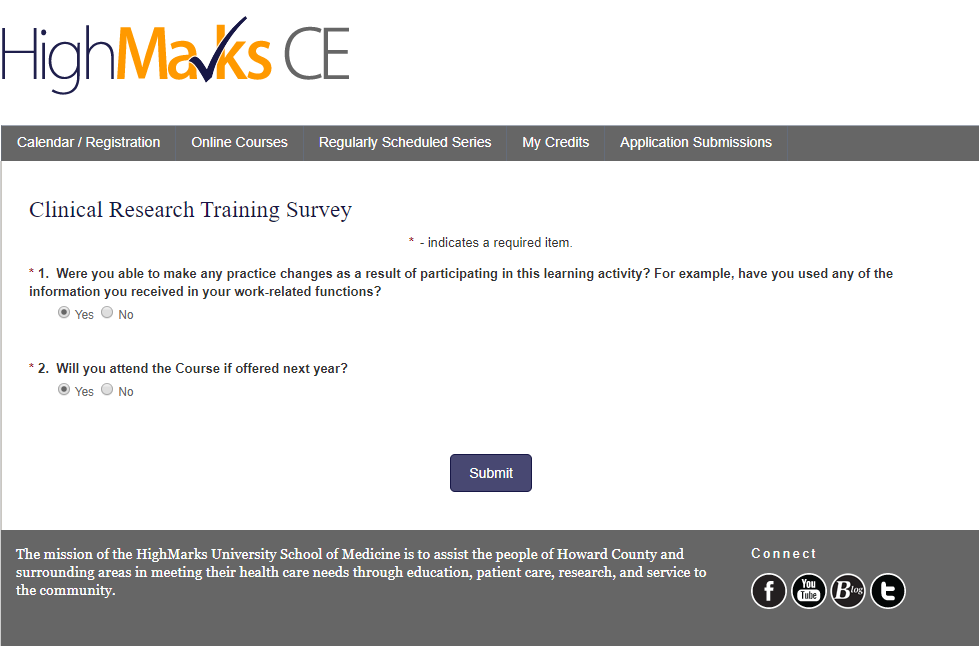
Click on the link and the survey opens as below. Complete the form and click on ‘Submit’
Step 6: Run Report:
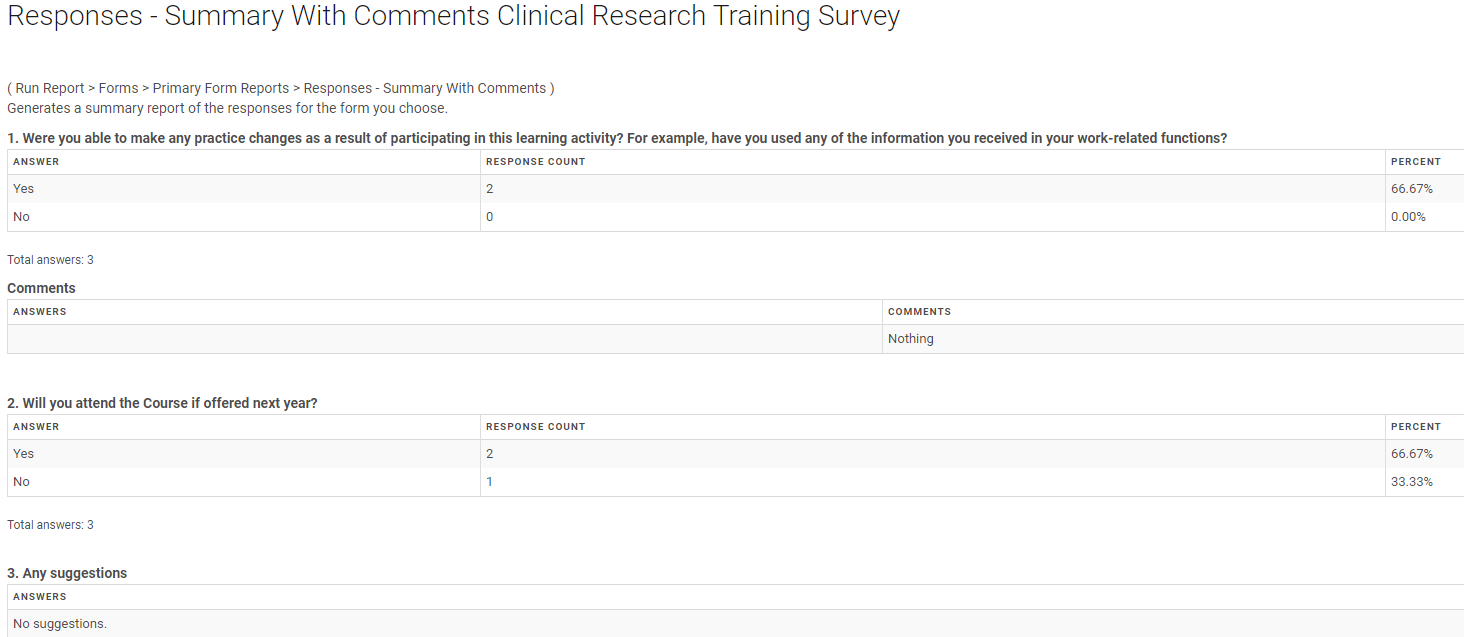
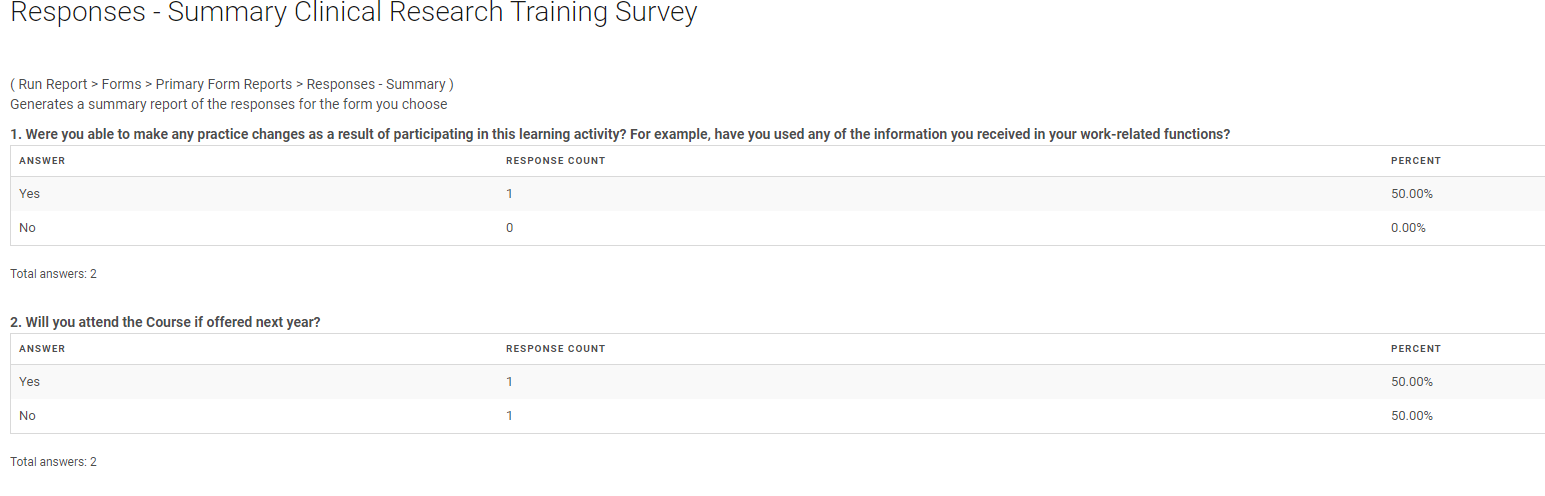
Go to Reports> Run Report > Forms > Primary Form Reports > Responses – Summary > Select the form and Run Report.
Note: This report does not show responses to the free form questions
OR
Run Report > Forms > Primary Form Reports > Responses - Summary with Comments > Select the form and Run report
Note: This report shows responses to the free form questions