Form Branching allows admins to link a Form Answer to the next Form Question a user should complete. i.e., users can skip to a question based on the answers they provide.
There are a few best practices to follow when using Form Branching:
- Form Branching works best for Enduring Materials - Pre and Post-Tests.
- The step-by-step navigation allows Form Questions flagged as Required = Yes to be skipped when using the Form Branching option.
-
For all other form uses, users must complete ALL Required = Yes questions for the form to be submitted. Otherwise, customization is required to allow users to skip Required = Yes questions.
- Form Questions must be set to Type = Choose One
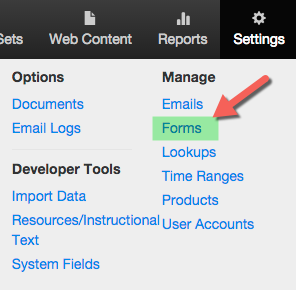
To set up Form Branching, go to Settings > Forms
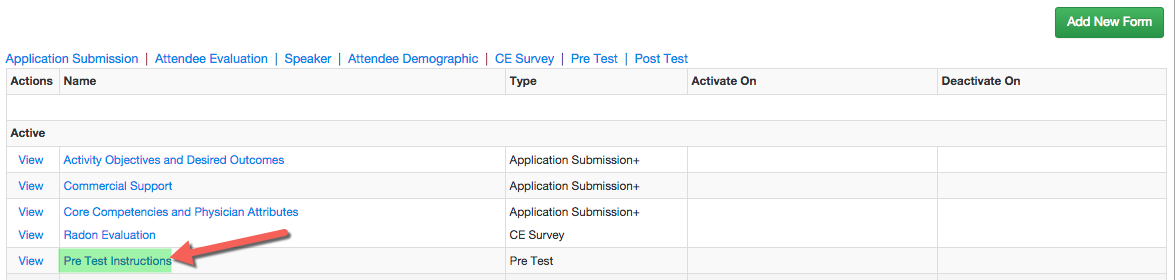
Click on the Name of an existing form or click 'Add New Form' (see related articles to set up a new form)
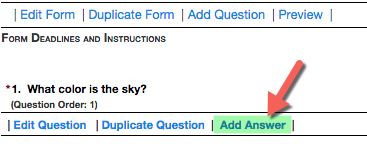
Click on 'Add Answer' next to the appropriate Question, or click 'Add Question' (see related articles to add a new question).
NOTE: you will need to have ALL Form Questions set up before you can use the Form Branching option
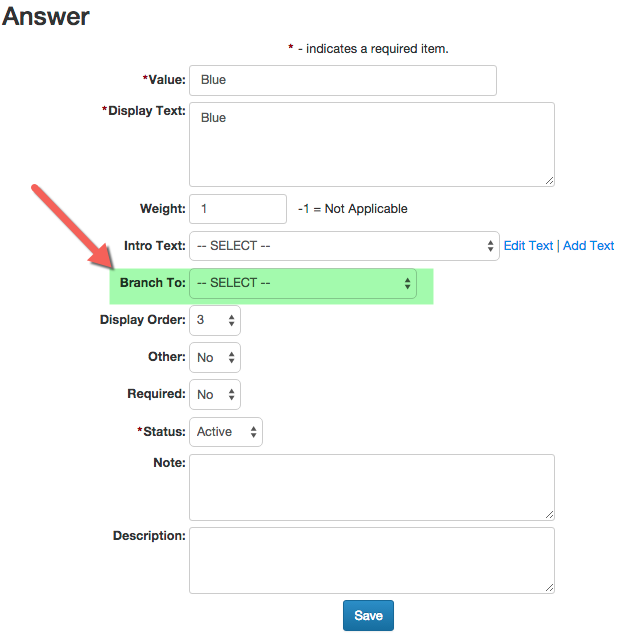
From the 'Branch To' drop-down list, select the Form Question you want the user to skip to if they select this Answer. Complete the required fields, any additional options, and click 'Save'.