The AI_SCHEDULE tag is used to communicate a user's schedule via email or electronic form. There are two types of schedules you can include; Speaker and Attendee (or both). Speaker schedules include 'Assigned Roles' in the 'Speaker Ready Room' and the Attendee schedule populates a user's 'Itinerary Planner' schedule.
EXAMPLE AI_SCHEDULE EMAIL FOR SPEAKER SCHEDULE:
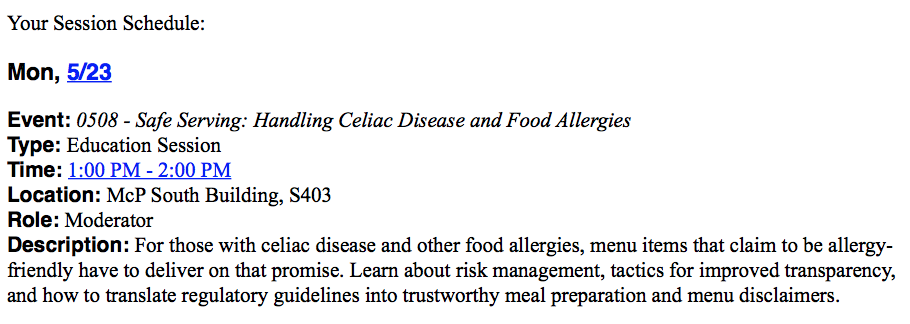
EXAMPLE AI_SCHEDULE IN SPEAKER FORM:

Sending an Email with the AI_SCHEDULE tag
There are a few additional steps to take when sending an email that includes the AI_SCHEDULE tag:
-
Be sure you set up your email template in advance with the AI_SCHEDULE tag included
-
Follow the normal steps to send an email to either an individual person or from a designated report
-
On the 'Send Email' page, there will be 3 options to choose from before you click 'Send'
-
Activity - select the specific Activity you want to include the schedule for (otherwise, the system will assume it should include ALL Activities the user is assigned a Role for)
-
Speaker Role/Assigned Role - select the Roles you want to include in the schedule (otherwise, the system will assume it should include ALL roles a person is assigned)
-
Include Schedule (this is required when using the AI_SCHEDULE tag) - select 'Speaker' to only include 'Assigned Roles' ('Attendee' and 'Both' only work if you have the 'Itinerary Planner')
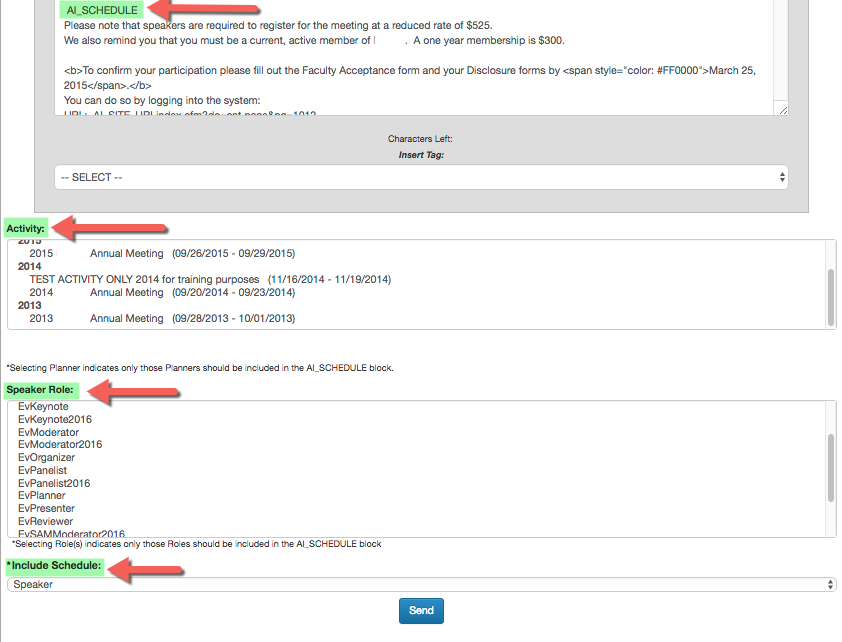
BEST PRACTICE: Be sure to test your emails before sending them out to your participants.
Including the AI_SCHEDULE tag in a Form
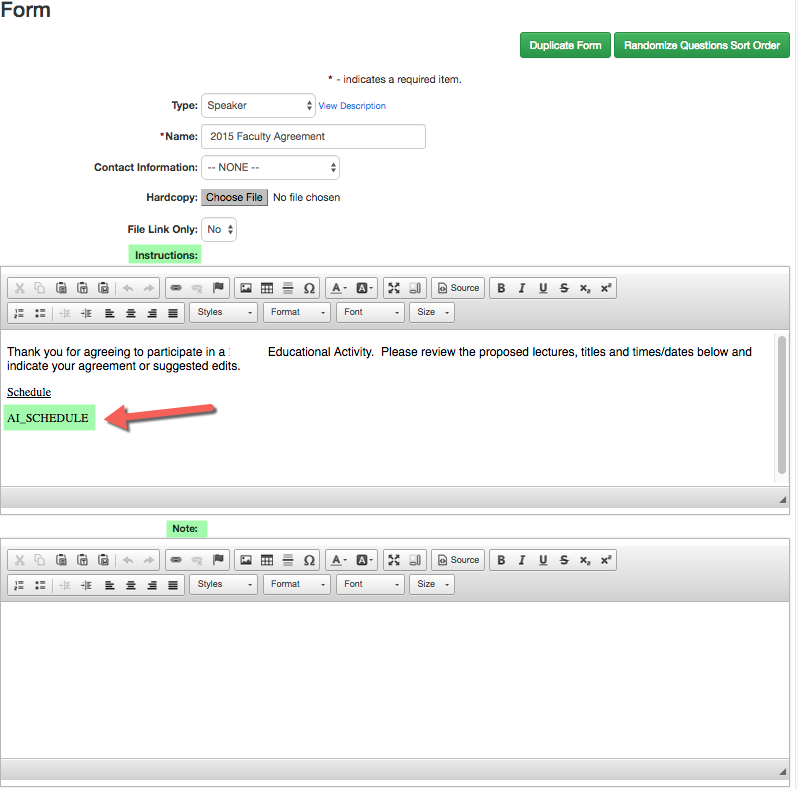
The AI_SCHEDULE tag is most commonly used to include a Speaker's schedule in a Letter of Agreement. There are a few steps to take when including the AI_SCHEDULE tag in a Form:
- Add the AI_SCHEDULE tag to the 'Introduction' or 'Notes' field of the Form
-
Associate the Form to the appropriate Activity by going to the Activity Dashboard > Manage FormsNOTE: if you do not associate the Form to the Activity, the system will include ALL Activities a user is assigned a Role for
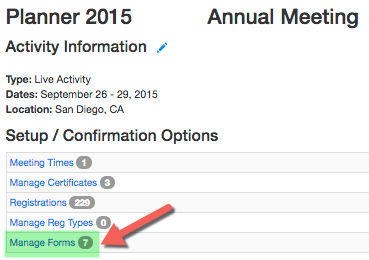
BEST PRACTICE: Be sure to test the Form in the Speaker Ready Room before notifying your participants.
AI_SCHEDULE Tag Included Data Fields
TBD or Starts On Date
PersonalActivity: eventCode - fullTitle [Pending]
abstractFieldsLabel: typeName
topic: topicName
planner: plannerName
time: startsOn - EndsOn or startsOn or tbd
presentedDuring: parentName
presentedDuring Time: parentTime
location: location
role: role
description: description
labelMoreInformation: moreInformation