This report is to pull the status (complete or incomplete) of Forms flagged as Speaker Ask Once = Yes
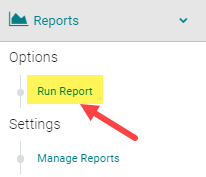
Go to Reports > People

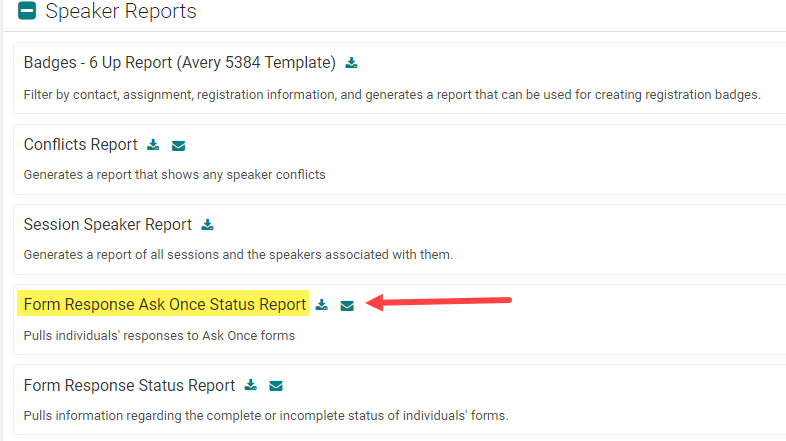
Under the 'Speaker Reports' header, click on the 'Select Criteria and Run' button below the 'Form Response Ask Once Status Report' title
STEP 1 - Select Filter Options
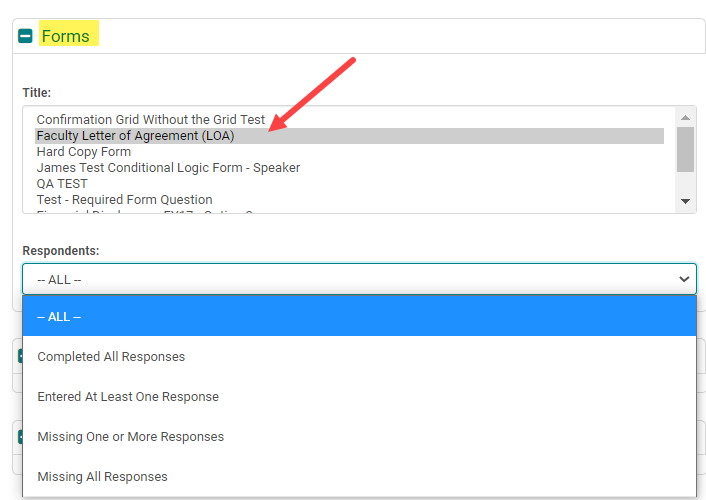
From the 'Forms' section, select the Form or Forms (using the 'Ctrl' or 'Shift' keys) you want to pull the status on.
Respondents:
-
ALL: you will see a '1' on the report for those who completed the form(s) and a blank field for those who have not completed the form(s)
-
Completed All Responses: use this to see who completed ALL of the forms selected
-
Entered At Least One Response: use this if selecting more than one form to pull who has completed one or more forms (1 = Completed, Blank = Not Completed)
-
Missing At Least One Response: use this if selecting more than one form to pull who is missing one or more forms (1 = Completed, Blank = Not Completed)
- Missing All Responses: use this to see who is missing ALL of the forms selected
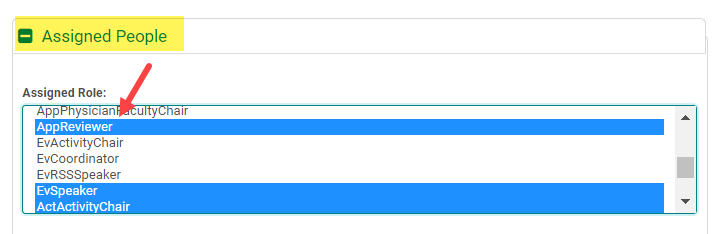
Assigned People > Assigned Role: select the Role(s) responsible for completing the Form(s)
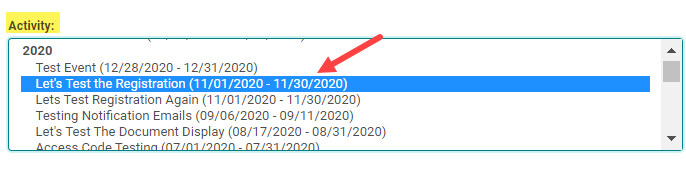
Assigned People > Activity: select the Activity to pull Speaker Forms for a specific Activity
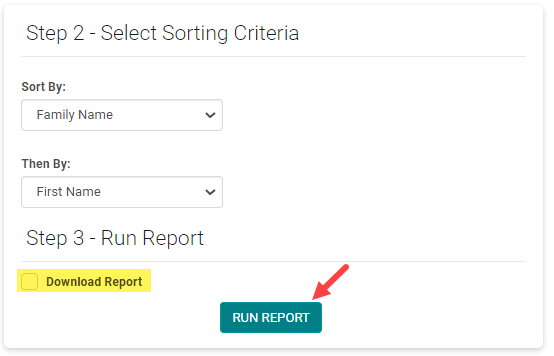
Step 3 - Run Report
Select the option to 'Download' the report, if needed. Then, click the 'Run Report' button