Select the Activity in the Switcher
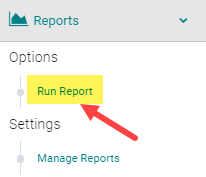
Go to Reports and select Sessions

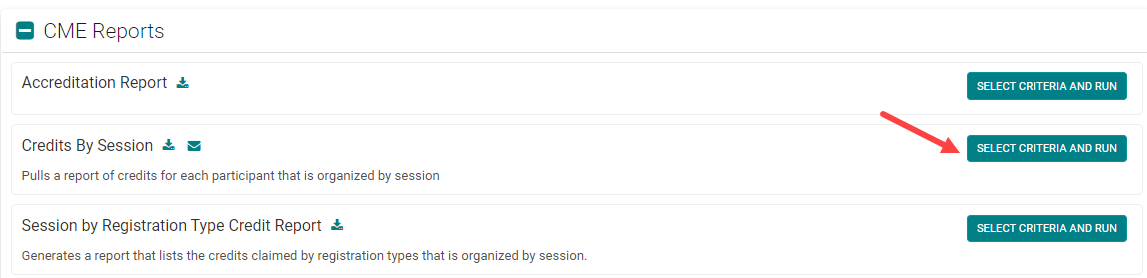
Under CE/CME Reports, select Credits by Session
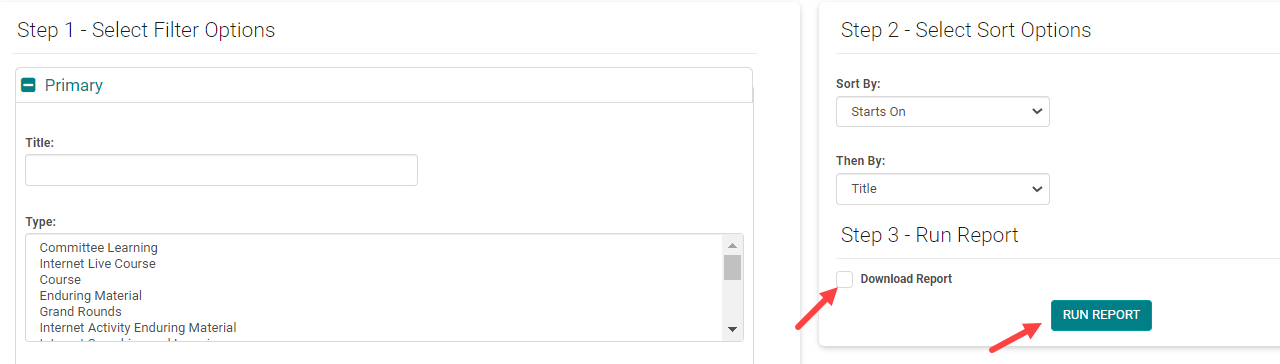
OPTIONAL: Type a portion of the title into the “Title:” field under Primary
OPTIONAL: Expand the “Dates/Location” section and for the “Starts On:” field choose the start date of the session
Under Step 3 select the checkbox next to Download Report. Select the Run Report button
This report will list:· Each session for this activity that matches the criteria (if the OPTIONAL fields are done, it should only return one session and for each returned session, all of the people that attended/claimed) Click “Download Report” to get a .csv file which contains one row for each person’s attendance record per session, sorted

You can then remove the rows you don't need and save the report with the information you do need
