The user will be able to access the Enduring Materials either through 'Online Courses' link or 'Enduring Materials' link. This depends on the site setup.


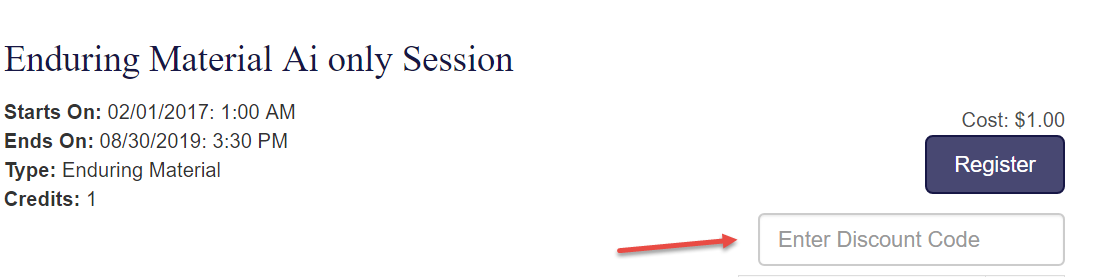
Step 1: The user will click on the 'Register' (if Registration on is flagged 'Yes') or 'Enroll' (if the Registration on =No) to enroll into the course and have access to the Content. Reg products are allowed on Enduring Materials. Even when there is no discount product added to the Activity, the enduring materials allows global discounts to be used. This can be ignored unless there is discount option.
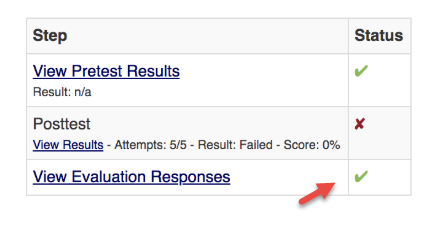
Step 2: The user takes the Pretest; reviews the Enduring Material; takes the Post Test; and completes the Evaluation.
Displaying Correct Answers
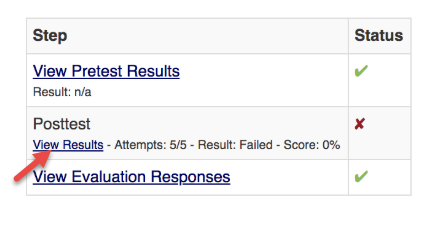
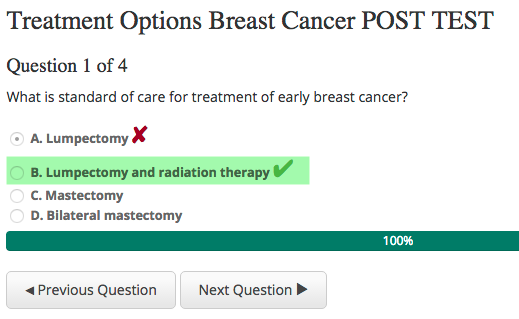
The correct answers will display to users via the 'View Results' link if one of the following occurs:
- The user passes the test - they will see the correct answers via the 'View Results' link
- The user fails all test attempts - they will see the correct answers via the 'View Results link
The 'Test submission attempts' and 'View Results' are controlled by the values entered in the fields as shown below for the pretest and Post test forms.

Users who failed all test attempts can click on the 'View Results' link to see the correct answers being displayed
Displaying Answer Explanations
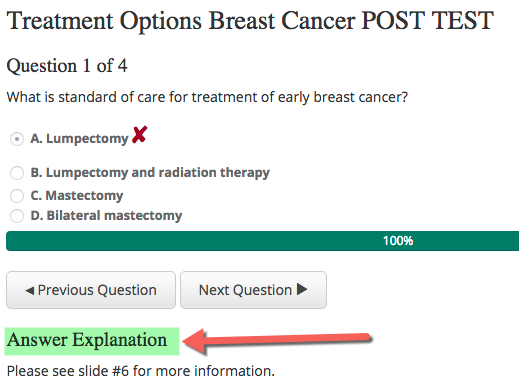
There is an option within each Post-Test Question to add an 'Answer Explanation' To set up Answer Explanations, please follow the instructions in the related article.
Answer Explanations will show up via the 'View Results' link if one of the following occurs:
- The user passes the test - they will see the correct answers via the 'View Results' link
- The user fails the number of times the 'View Answer Attempts' field is set to in the Form Settings.
Note: If the 'View Answer Attempts' is less than the 'Submission Attempts' , a person who has pending test attempts does not see the correct answers until they reach the max submission attempts, but can still see the answer explanation, if available. This serves as a hint for learners to choose the correct answer in their subsequent attempts. If you do not want this, always have the same value set for both the fields.
Step 3: After completing the evaluation credits would be added to the users and they would be able to print their certificate.
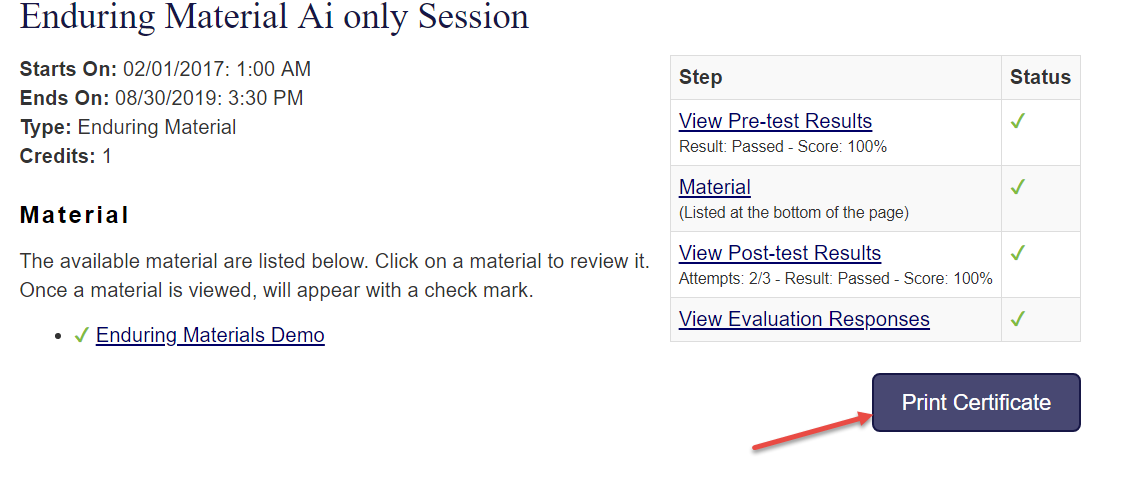 Note: if the user has used up all of his/her test attempts and failed, the Evaluation step (if present) will still be available for completion. However, completion of the evaluation at that point does not award credit if the post-test is weighted (i.e., they failed).