The AI_FORMRESPONSES email tag is used to insert a user's submitted Questions and Answers via electronic Form. This tag works in two scenarios; Form Confirmation Email and Registration Confirmation Email.
The data output includes numbering of each Question, the Question, and Answer.
EXAMPLE AI_FORMRESPONSES VIA EMAIL
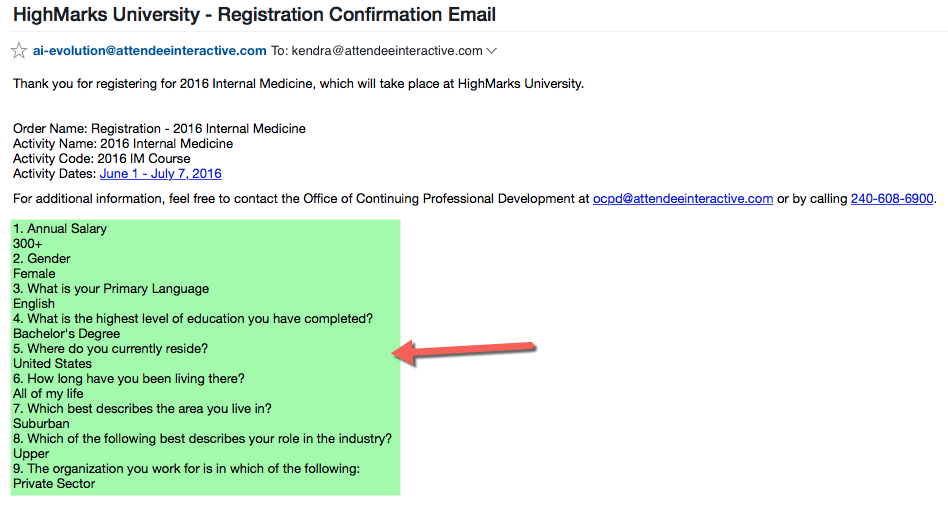
Form Confirmation Email
To use the AI_FORMRESPONSES email tag in a Form Confirmation Email, make sure the Email Template is associated to the Form (see related articles on how to add/edit Email Templates).
Go to Settings > Forms

Click on the Form Name you want to add the Confirmation Email to

Click on 'Edit Form'

Scroll to the bottom where the 'Confirmation Email' drop-down field is, select the correct Email Template, and click 'Save' to update your changes

BEST PRACTICE: Be sure to test out the Confirmation Email before publishing to third party users.
Registration Confirmation Email
To use the AI_FORMRESPONSES email tag in a Registration Confirmation Email, make sure the Email Template is associated to the Activity Pages > Type = Registration Confirmation Paid and Registration Confirmation Unpaid (see related article on Registration Set-up Instructions).
NOTE: if you do not set up Activity Pages for Registration Confirmation, the system will send the default Registration Confirmation Email (Email ID = 20). Check with your Project Manager if you are unsure how your system is set up.