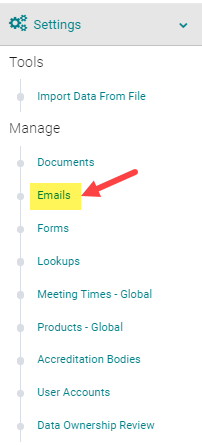
Go Settings > Emails
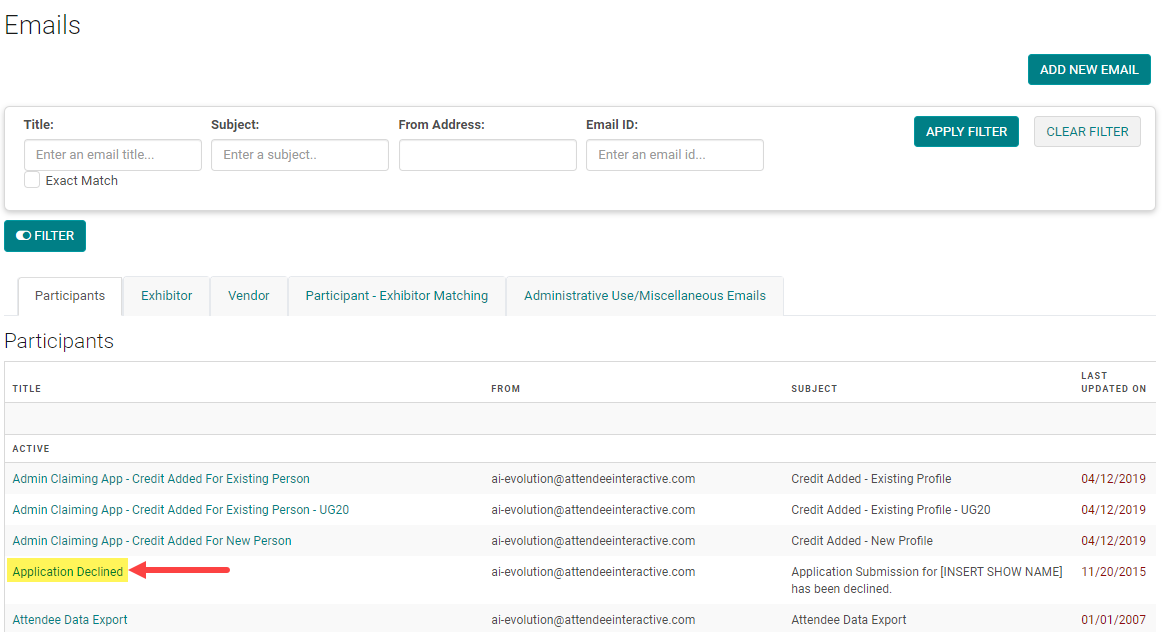
Click on the Title of the email template you want to edit
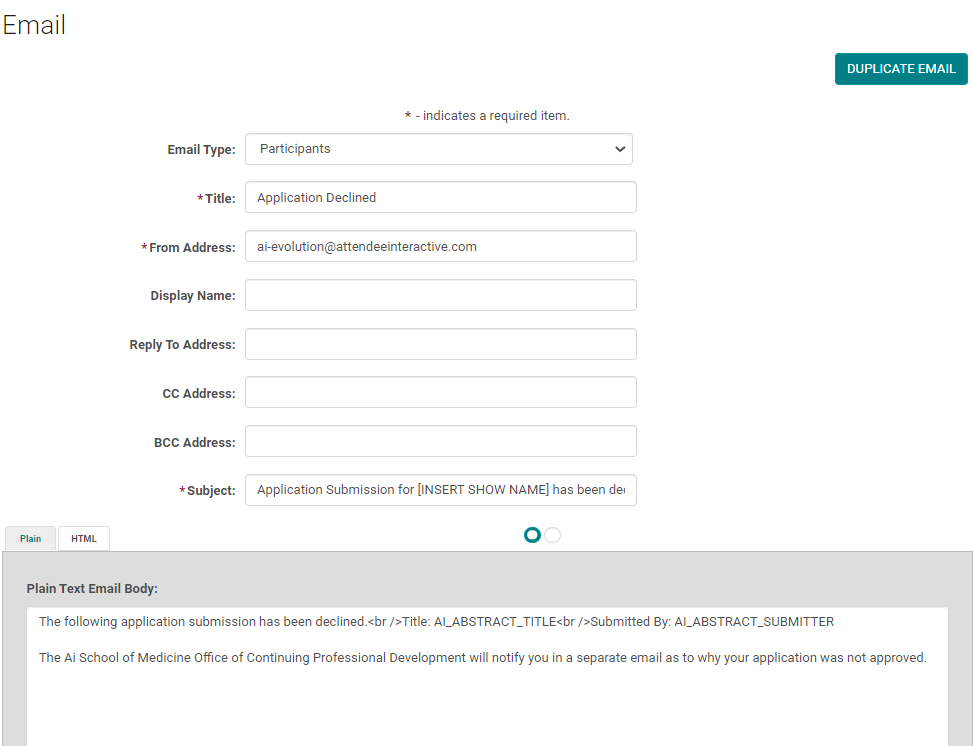
Complete the following:
- Select the appropriate 'Email Type' - most often it is 'Attendee' (a.k.a. People)
- From Address: This is the address of the account that is being used to send the emails out. For example: aisupport@aievolution.com
-
Display Name: This is the name that is displayed in-front of the From Address. You can enter your organization name here such that it is shown as - Attendee Interactive<aisupport@aievolution.com. The display name helps the receiver know the email sender, which is sometimes not very evident from the actual email address.Note: Certain email servers may not support "Display Name" option.
- Reply To Address: This is the address where the reply email has to be sent to. This may or may not be same as your From Address. This could be your support desk email address.
- Select the 'Plain' and 'HTML' text tab and enter your email text
- Click 'Save'
We recommend sending a test email to yourself when you make changes to email templates. See the related article, "People - Send Email" for further instruction.