User triggers an email for resetting their password
Instruct users to click on the 'Get it now!' link on the appropriate sign in page to retrieve their sign in credentials
Users will be prompted to enter their First Name, Last Name, and Email. This Email should match with the email on their account.
Admin triggers the password reset email
OPTION 1:
From the Admin, hover over the 'People' menu and search for the user who needs their sign in credentials emailed
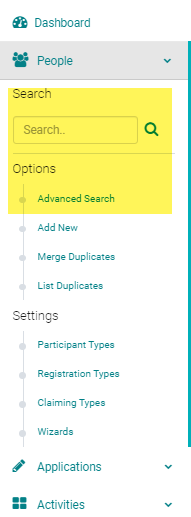
From the search results page, click on the action menu and click on 'Send Password Reset'

OPTION 2:
Click on the name of the person. In the edit profile screen, click on the the 'EMAIL CREDENTIALS' button.

OPTION 3:
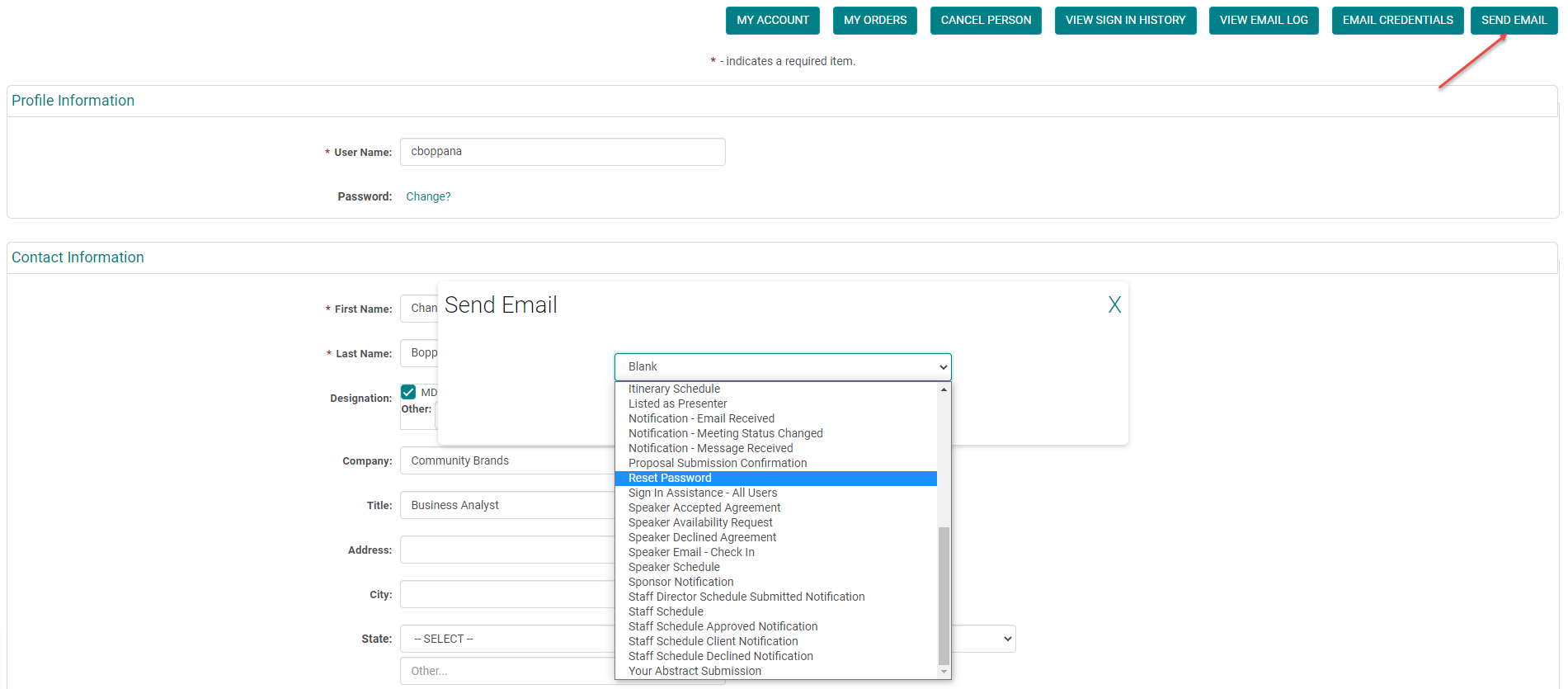
Click on the name of the person. In the edit profile screen, click on the the 'SEND EMAIL' and from the drop-down list select the appropriate email to send user credentials
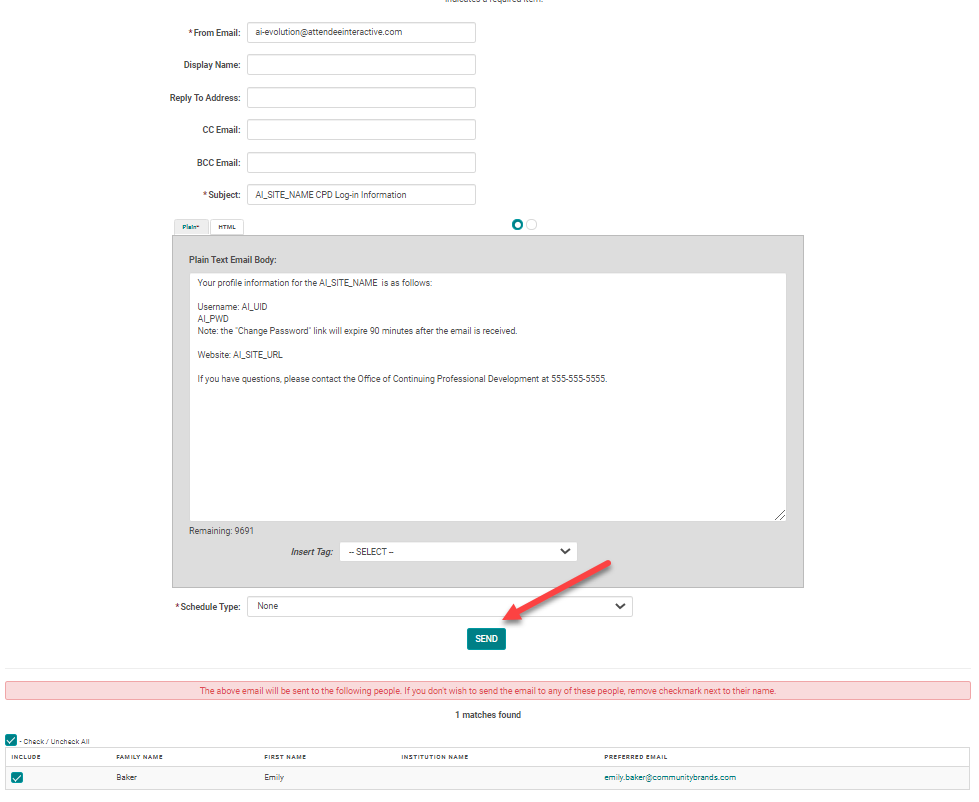
Review the email and recipients before clicking 'Send'
Click 'OK' to send the email
- All of the above options send an email to the user. This email contains a link to reset their password. The link in the password reset emails expires after 90 minutes.
- Any emails containing the AI_UID (Username) and/or AI_PWD (Password) email tags will not CC or BCC other recipients for security purposes. New users will be sent a temporary password and returning users will be sent a link to reset their password.