Rules for User Cancellable Orders
- Users can only cancel their own registration if the entire order is cancellable. This means, all products in the order must have the Cancellation Allowed field set to “Yes”
- Cancellation date must be within the Attendee Cancellation Deadline timeframe
- Payment type determines if they get an immediate refund. Checks, cash, and other non-credit card payments will need to be refunded outside the system.
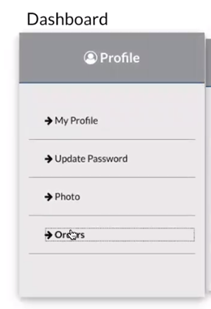
The user can access their orders via the My Orders link on the Profile card.
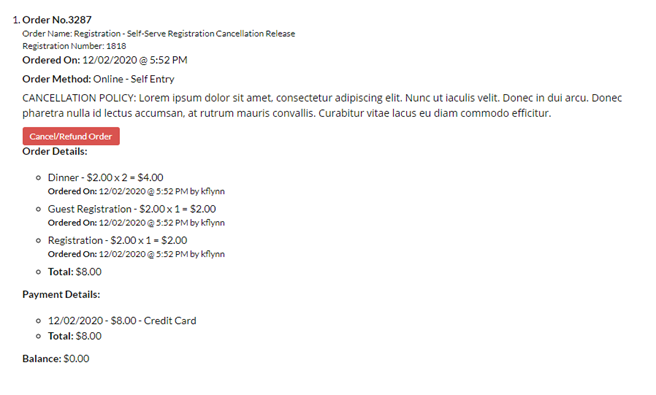
If cancellation is allowed, the user will see a “Cancel/Refund Order” button directly above the Order Details.
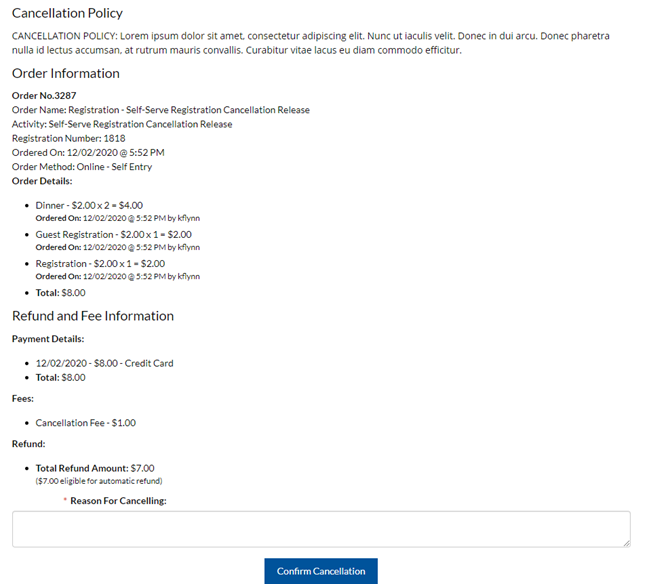
Clicking “Cancel/Refund Order” will take you to a screen that reiterates the cancellation policy and displays the order details along with any cancellation fees and the expected refund.
The user must enter a reason for canceling and click on 'Confirm Cancellation' button.
- The user will receive an email with the cancellation details. The email is based off the template used for the Attendee Cancellation Email during set up. An admin will be cc’d on the email IF it was added to the CC Address field on the email template.
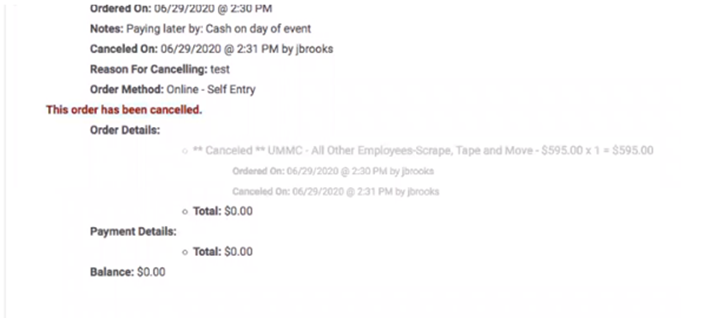
- The My Orders screen will display “This order has been cancelled”.
- The user’s registration demographic form, completed during the reg process, will no longer be available in the reports.
User Cannot Cancel Registration
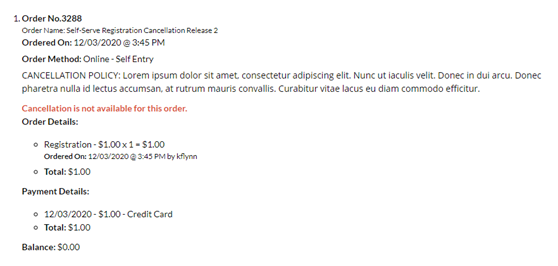
When orders are not allowed to be cancelled they will see the message “Cancellation is not available for this order” instead of the “Cancel/Refund Order” button.
Admin View:
To view the registration cancellation flow via the admin:
1. Navigate to the Activity Dashboard
2. Go to the People tab > Manage Members > select a person
3. Select My Orders

4. From here, follow the above instructions