Reports available for sending a Mass Email are indicated with an email icon.

To get list of registrants for EM - Go to Reports>People> Person Reports> Session Roster
To get list of people received Credits - Go to Reports> People>Credit Reports> Credits by Session and then filter for the particular session
OR
Go to Reports> Sessions>Credit Reports> Credits by Session and then filter for the particular session
OR
Go to Reports> Sessions>Credit Reports> Credits by Session and then filter for the particular session
In the top-right corner of the report results screen, click on the 'Send Email' button

Select the Email Template you want to send from the drop-down list, or select 'Blank' to create an email on the fly. Then, click 'Submit'

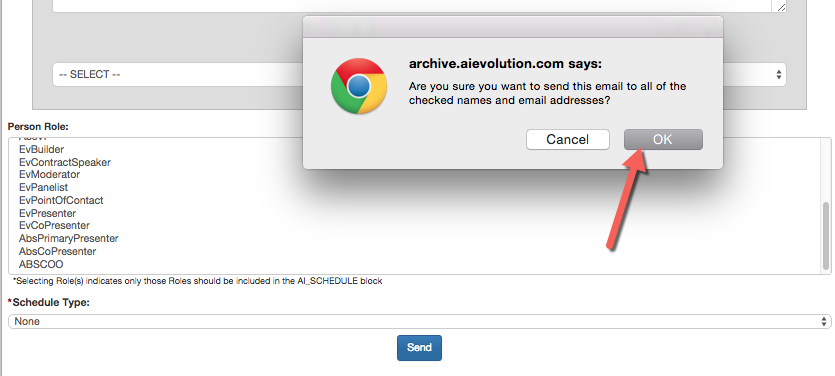
Review the Email Template and list of Recipients before clicking 'Send'


Click 'OK' in the pop-up notification to send the email
To get list of registrants for EM
Go to Reports>People> Person Reports> Session Roster
To get list of people received Credits
Go to Reports> People>Credit Reports> Credits by Session and then filter for the particular session
OR
Go to Reports> Sessions>Credit Reports> Credits by Session and then filter for the particular session
OR
Go to Reports> Sessions>Credit Reports> Credits by Session and then filter for the particular session