STEP 1: Go to Settings > Web Content > Files

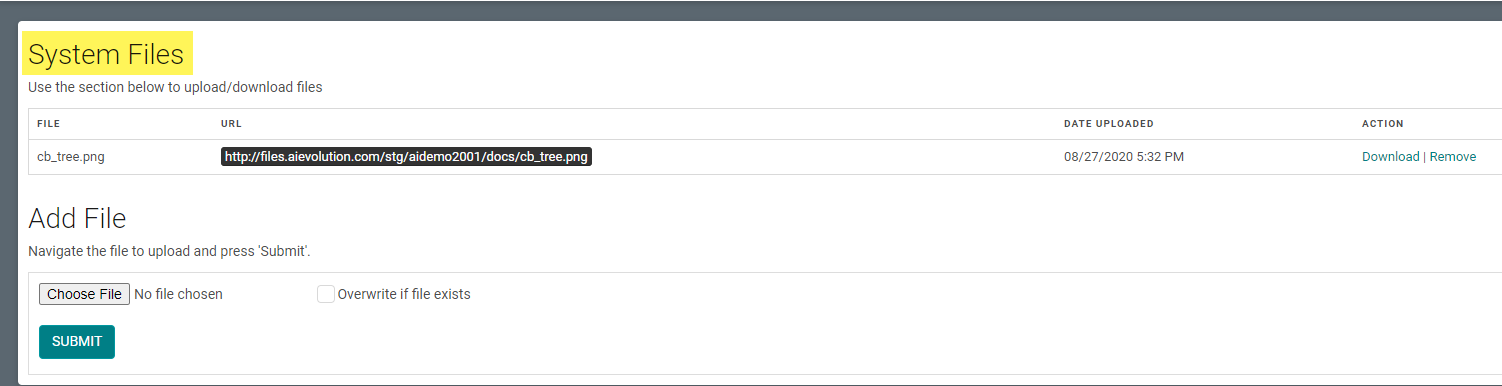
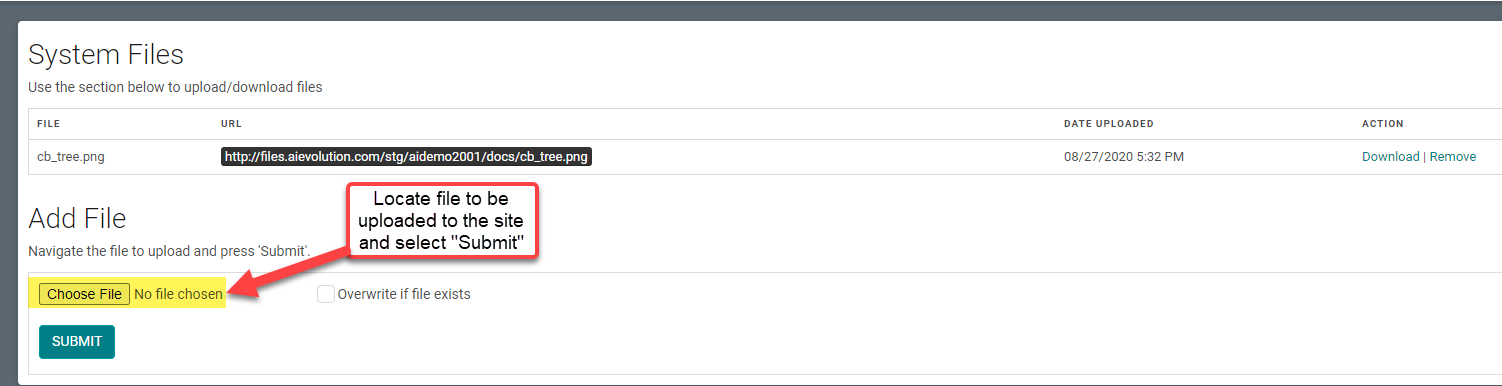
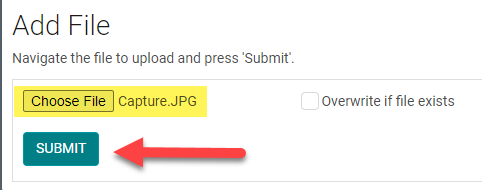
STEP 2: At the bottom of the page, select the 'Choose File' button
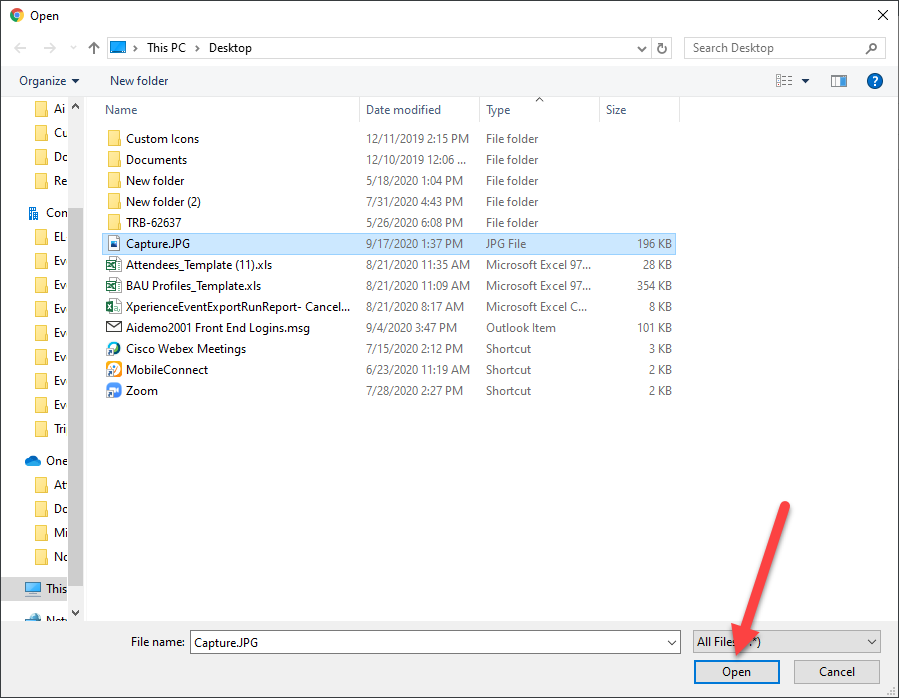
STEP 3: Search your computer for the correct file and select 'Open'
STEP 4: Select the 'Submit' button
NOTE: check the 'Overwrite if file exists' to replace a file with the EXACT same file name.
Once the file is added to System Files, it can be added to Web Content by being copied and then pasted into the URL Field noted in Step 9 below.
Once the file is added to System Files, it can be added to Web Content by being copied and then pasted into the URL Field noted in Step 9 below.
STEP 5: Got to Web Content > Site Map

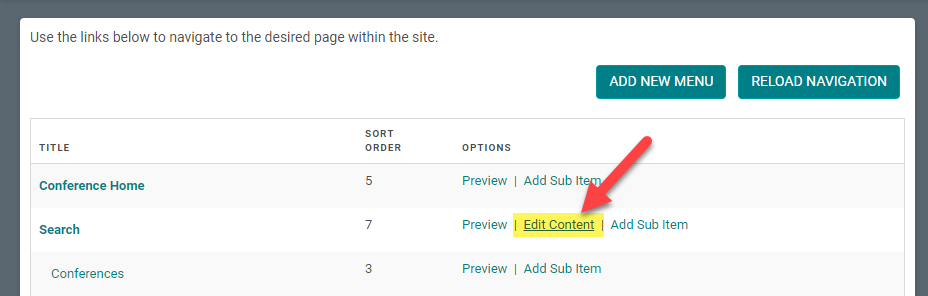
STEP 6: Select 'Edit Content' next to the Menu you want to add the image to
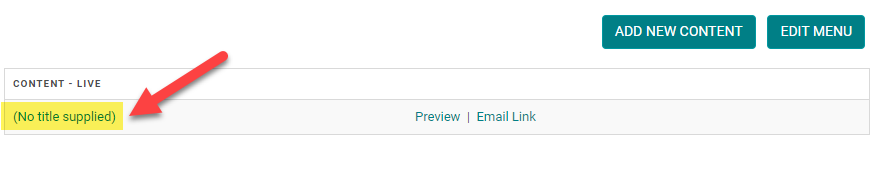
STEP 7: Select the Content you want to add the document to
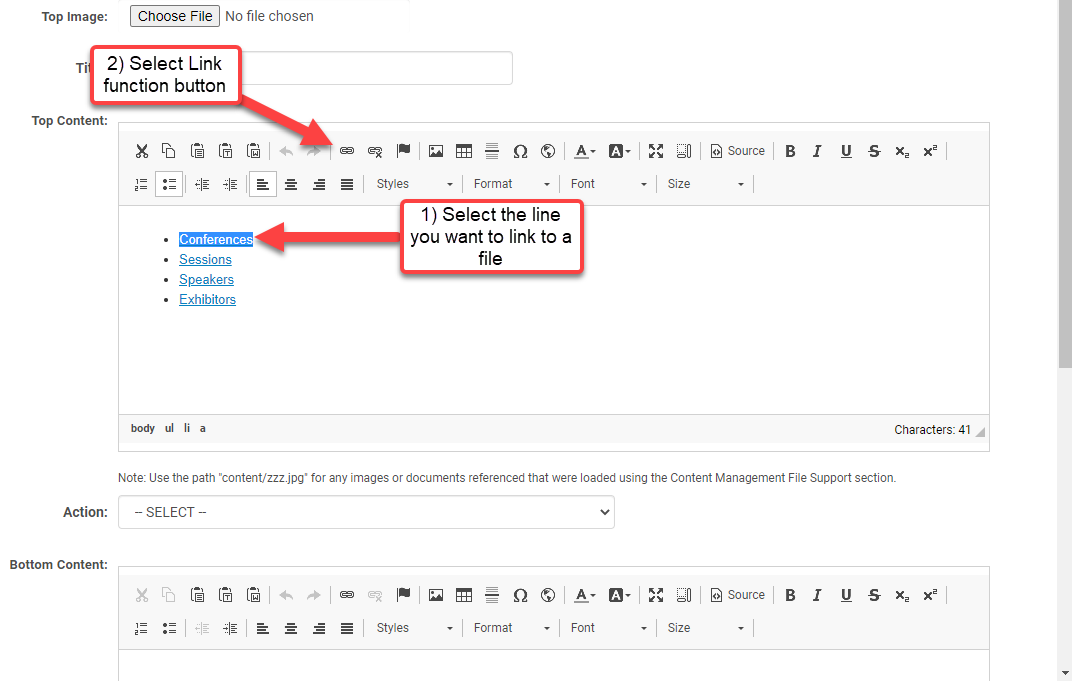
STEP 8: Select the entire title/text that you would like to add the document link to (#1 below), then select the Link function button (#2 below)
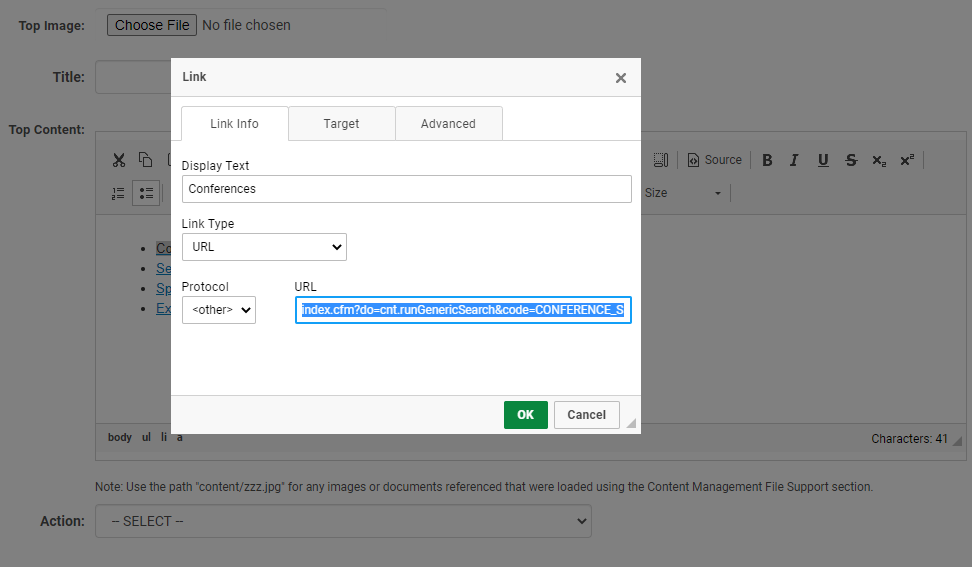
STEP 9: The LINK box window will open. Select <Other> in the Protocol field, then copy the file that was added in Step 2 and then paste it into the URL field and select “ok”.
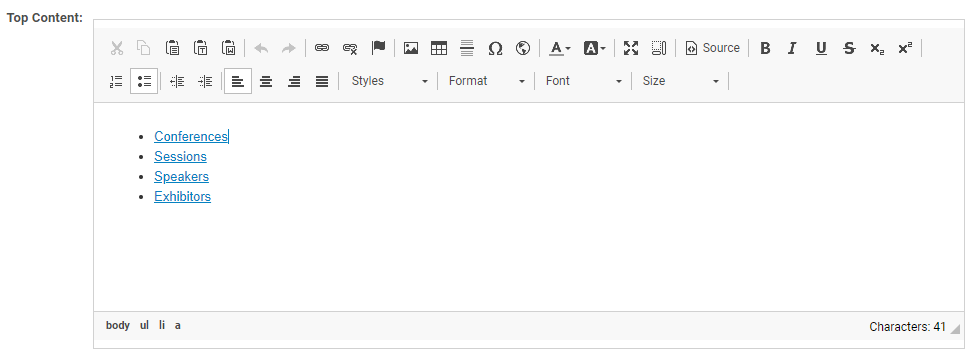
Step 10: The Title/Text will be underlined to show that the link has been added.
Step 11: Select “Save” at the bottom of the page and then reload Navigation on the "Site map" page to make the change LIVE.