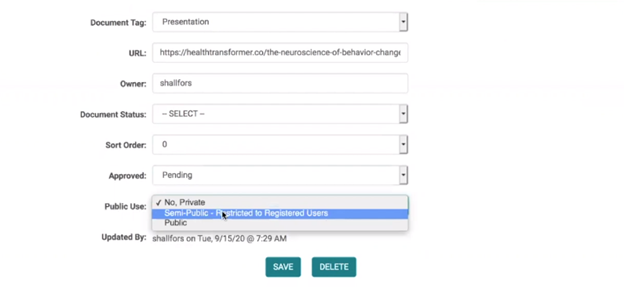
Selecting this option will:
From the front end
- Makes the document only visible to registered users (users in the ActRegistrant role) in previews and public searches
Note: This field works for Activities whether or not the Registration is turned on.
- When there is Registration all the Registrants are automatically added to the ActRegistrant role.
- For Activities where there is no registration you can still add certain selected users to the ActRegistrant role and allow them access to the restricted documents with the help of this field set up.
- Users who are not in the ActRegistrant role regardless of registration turned on or not for the Activity, will not see this document at all.
- This flag is irrelevant to Enduring Materials Session documents. That means, on Enduring Materials documents can only be access by users that enroll/register for that Enduring Materials Activity. So, just use the 'Public' flag.
From the Admin side
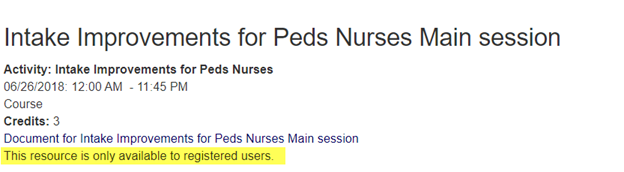
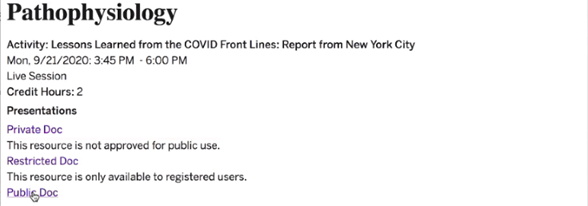
Previews from the Admin side will show all the documents regardless of the “Public Use” field status. Like shown in the below screenshot there is a note under each document to notify the Admin which document is available for the front-end users.
Documents flagged as
No, Private– not visible from the front end whether registered or not. The note under the document says “This resource is not approved for public use”
Semi-Public – Restricted to Registered Users - Visible only to the registered users. The note the document says “This resource is only available to registered users”
Public – Visible from the front end whether registered or not. There is no note under public docs.
Additional areas this change is reflected
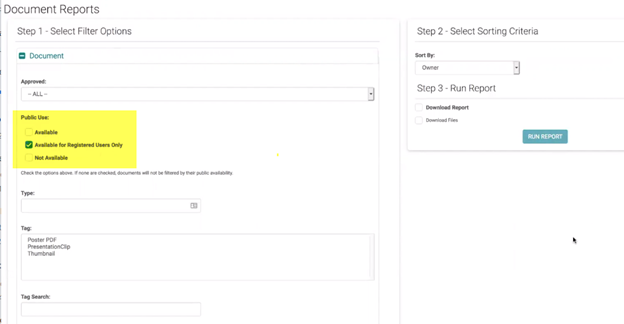
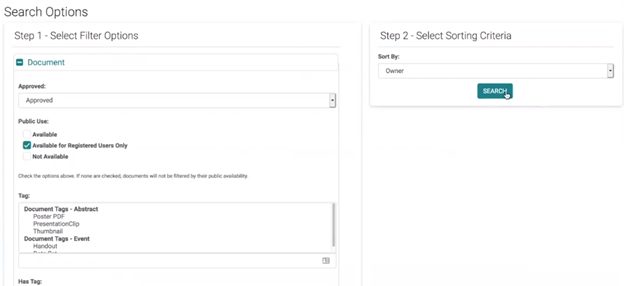
- Reports > Events > Document Reports >when you run a report, there is now an additional option (if registration is turned on) where you can search by multiple Public Use settings
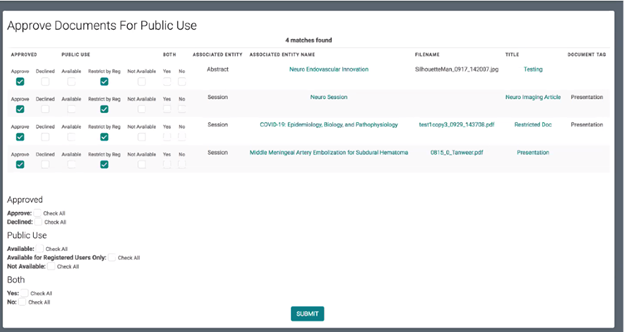
- Bulk approve docs for public use under Settings > Documents you should be able to filter the results by this flag and update the settings as needed.
Additional Note: