Note: Manage PARS tab has been updated to align with ACCME’s recent changes to the data you need to collect for PARS.
Go to Activities > use the text search or 'Advanced Search' to find the Activity you need to update the ACCME PARS Reporting Year for
Click on the Activity Title
From the Activity Dashboard, click 'Manage PARS'
NOTE: some data will pre-populate for you - ask your Project Manager to explain which fields will pre-populate. Update the appropriate information and click 'Save'.
Number of Credit Hours:
Total number of respective credit hours for the activity. The generated total is total number of respective credit hours for all of the activity's sessions. If a session does not have a specific credit hours specified, the session's credit is not used in the total. You can either use the system generated counts or enter the hours manually.
Profession/Claiming type Counts:
Physician Count: The generated counts are based on the credits claimed/awarded for the sessions, which can be found under the session's "Manage Attendance" . As per ACCME, the physician count should include the number of MD’s and DO’s that participated in the activity, and should include residents. While we show the generated count for convenience, the field can be set manually after confirming the counts.
Non-Physician Count: The generated counts are based on the credits claimed/awarded for the sessions, which can be found under the session's "Manage Attendance". As per ACCME, the non-physician or other learners count should include attendees other than MD’s or DO’s, such as Nurses, Physician Assistants, and other health professionals. While we show the generated count for convenience, the field can be set manually after confirming the counts.
Other Profession Count: As per ACCME, for JA PARS reporting, all individual professions must be reported separately. They are included in the Non-Physician counts. The generated counts are based on attendance for associated events/sessions, and includes users that have a claiming type/profession that has been designated as a nurse claiming type/profession. While we show the generated count for convenience, the field can be set manually after confirming the counts.
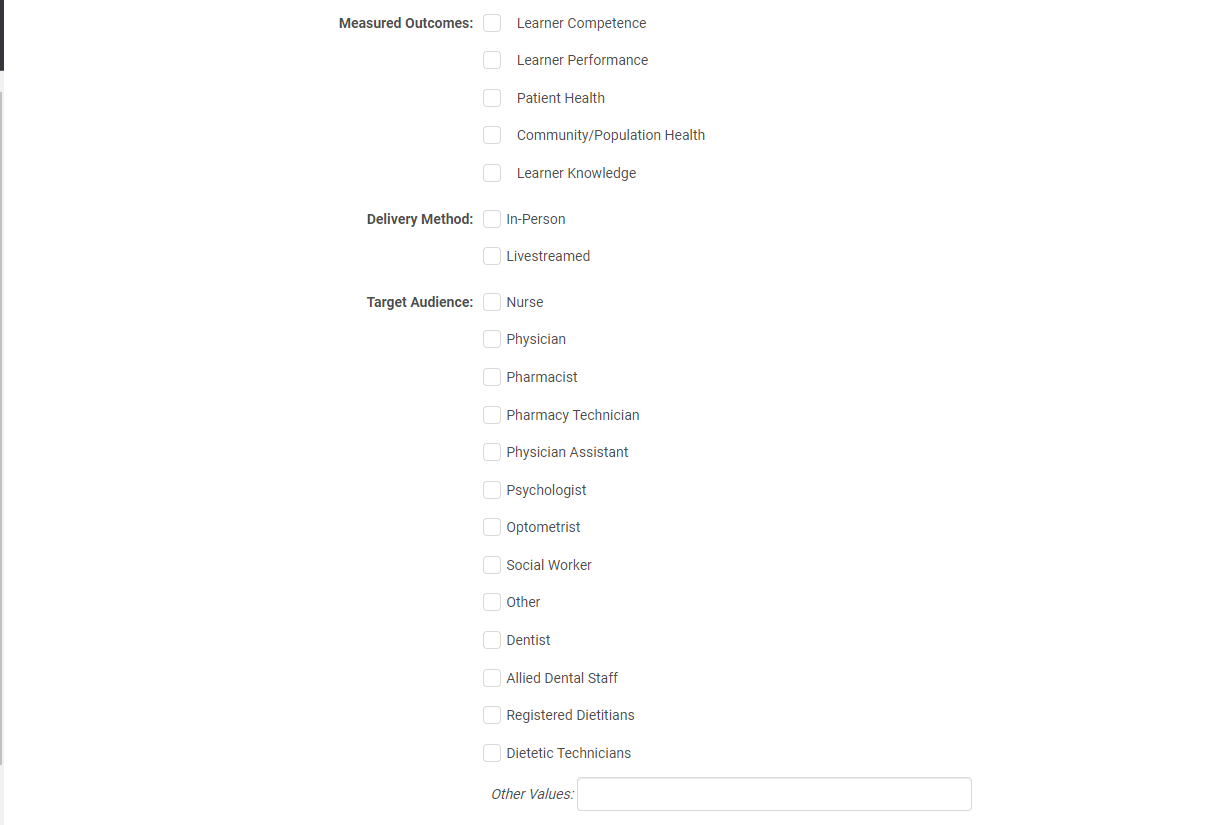
Measured Outcomes:
This data can be mapped from the application or entered manually.
Delivery Method Collection
This data can be mapped from the application or entered manually.
- If Live Course/RSS is selected as the activity format, the following checkboxes will be shown:
- If Enduring is selected as the activity format, the following checkboxes will be shown:
- For all other activity formats, none of these options will be shown.
Target Audience:
This data can be mapped from the application or entered manually.
Other Reporting Settings:
Financials:
Click on 'Add Financials' and enter the appropriate information and click 'Save'
Note: If the activity did not receive revenue, then nothing needs to be added in PARS Financials. The PARS Report / JA PARS will set the value for those entries at 0 if the corresponding financials/categories do not exist for the activity. The PARS/JA-PARS report sums up this information for all the Activities and shows the Aggregates. If you scroll through the report you can see the Commercial Support Received information for each individual activity.
Commercial In-Kind Support Financials
When adding a financial record under the ‘Manage PARS’ screen, you will have the following options:
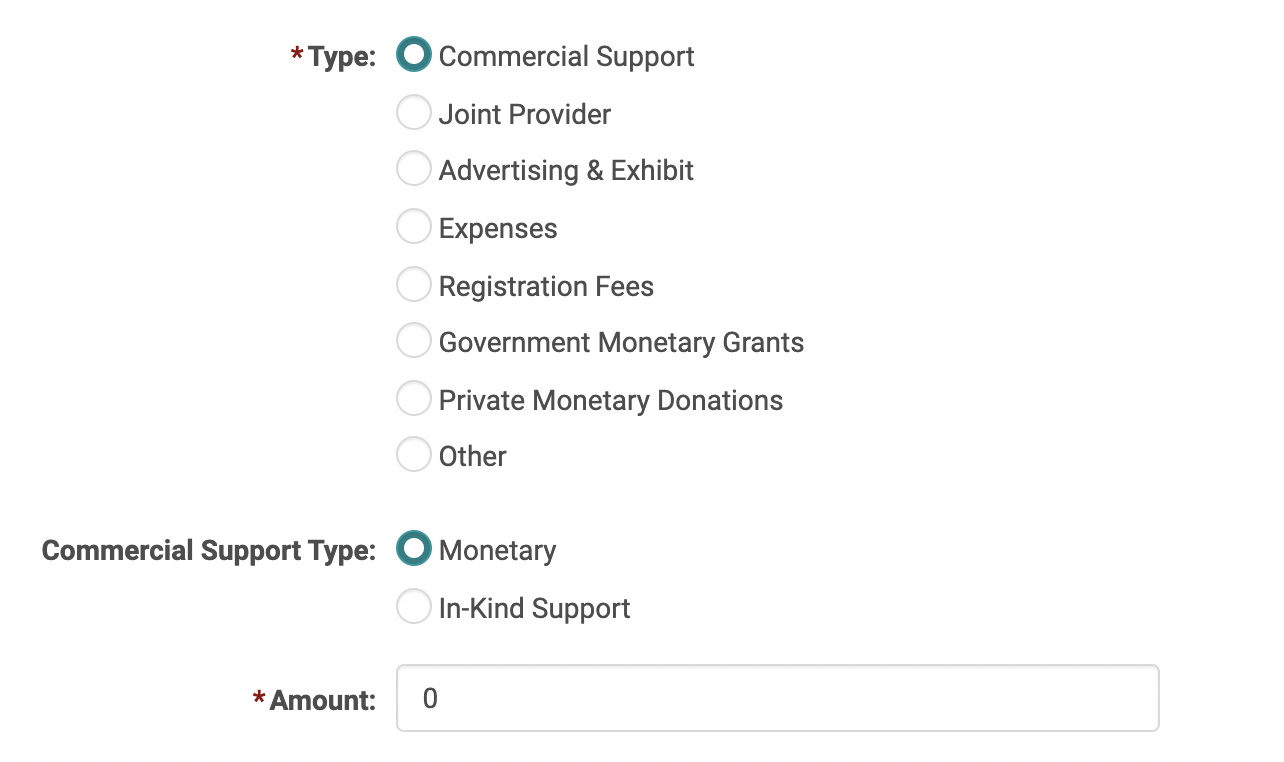
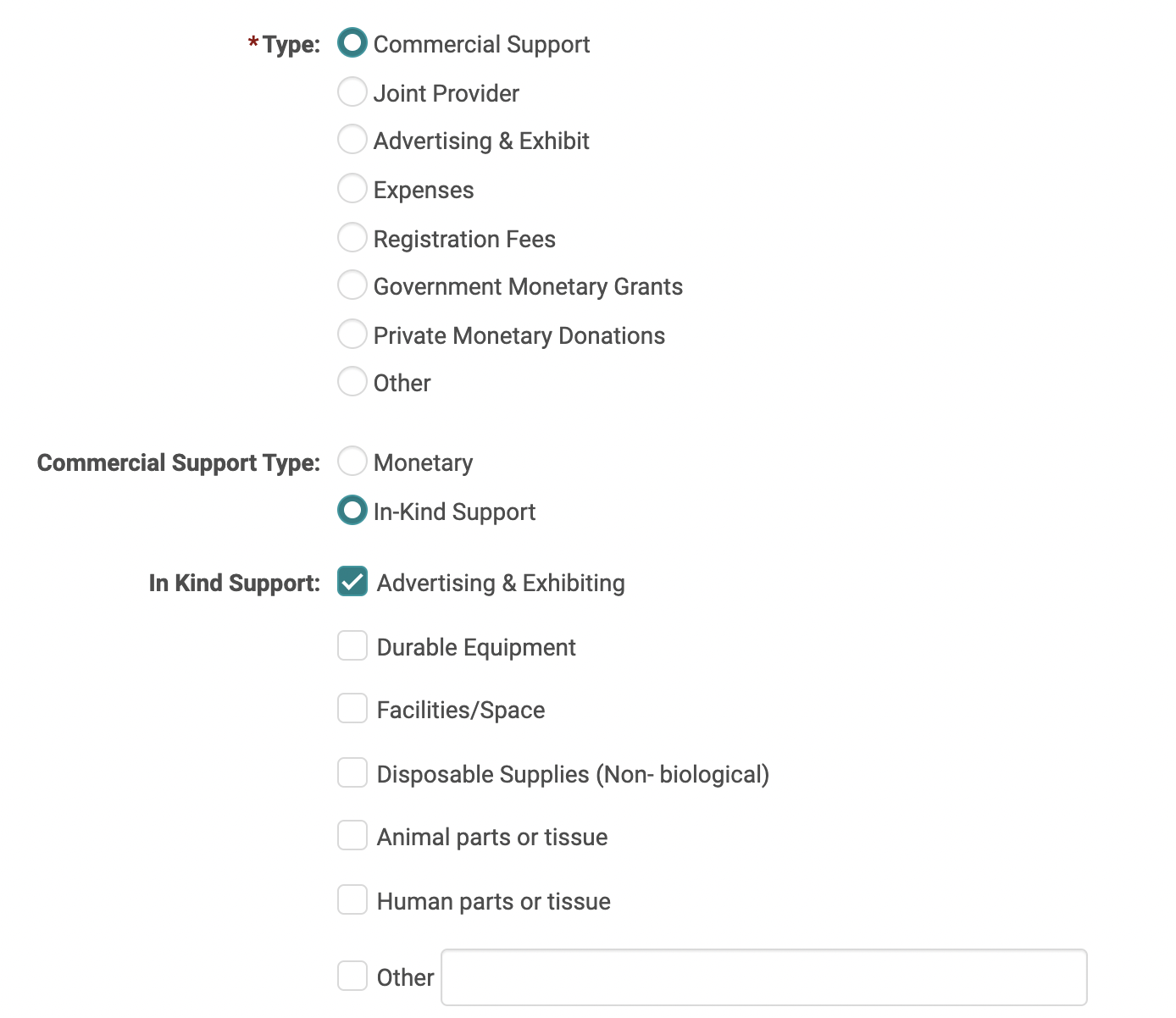
- IF Commercial Support is the type of financial selected, you will be able to select a secondary type of “Monetary” or In-Kind Support.”
- If Monetary is selected, you can enter the dollar amount.
- If In-Kind Support is selected, you will still have the option to select the type of in-kind support, however this will no longer be required as ACCME is no longer collecting the type of in-kind support, unless you are using the Tab-delimited report.
- If a financial type other than Commercial Support is selected, you will be able to enter a dollar amount but will not see the other fields mentioned above.
Commercial Support: Monetary
Commercial Support: In-Kind
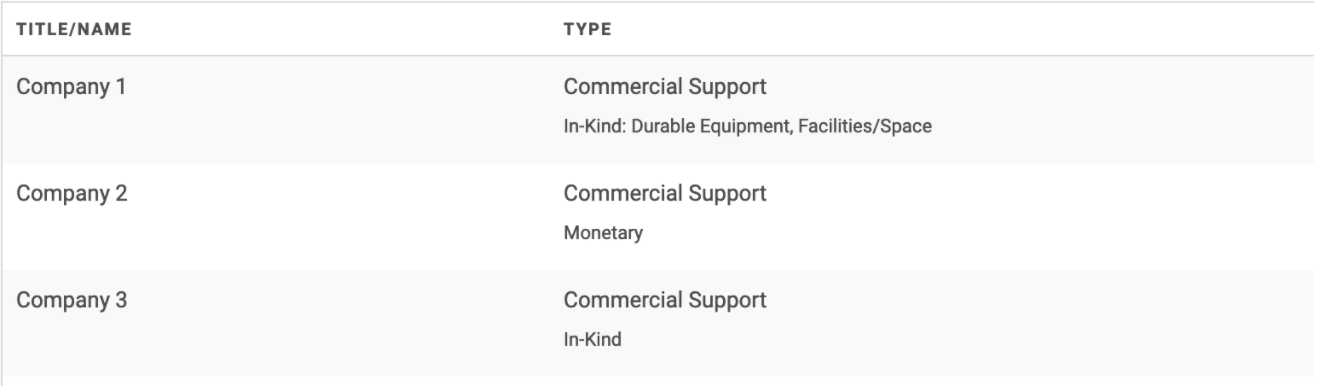
Financials Table
On the ‘Manage PARS’ screen, the Financials table has been updated to make the type of Commercial Support more intuitive. The type of commercial support will be specified in the ‘Type’ field and will also indicate the type of in-kind support if that is entered.