Below details the updates we are releasing to HighMarksCE to align with ACCME’s recent changes to the data you need to collect for PARS.
The below updates have been released in your test environment as of March 3, 2022. They will be released in your live environment March 7, 2022.
Edit Activity Screen
- Zip Code Field: There is a new text input 'Zip Code' after 'Country' on the edit activity screen. This field has also been added to the Activity “Details Report”.
- Activity URL: There is a new text input field “Activity URL” on the edit activity screen. This field has also been added to the Activity “Details Report”.
Delivery Method Collection
To capture the delivery method offered for activities so that it can be included in the PARS report, we’ve added the below fields.
Under the 'Manage PARS' screen, a 'Delivery Method' section has been added with the following rules:
- If Live Course/RSS is selected as the activity format, the following checkboxes will be shown:
- In-person
- Livestreamed
- If Enduring is selected as the activity format, the following checkboxes will be shown:
- Online
- Print/Other
- For all other activity formats, none of these options will be shown.
Commercial In-Kind Support Financials
When adding a financial record under the ‘Manage PARS’ screen, you will have the following options:
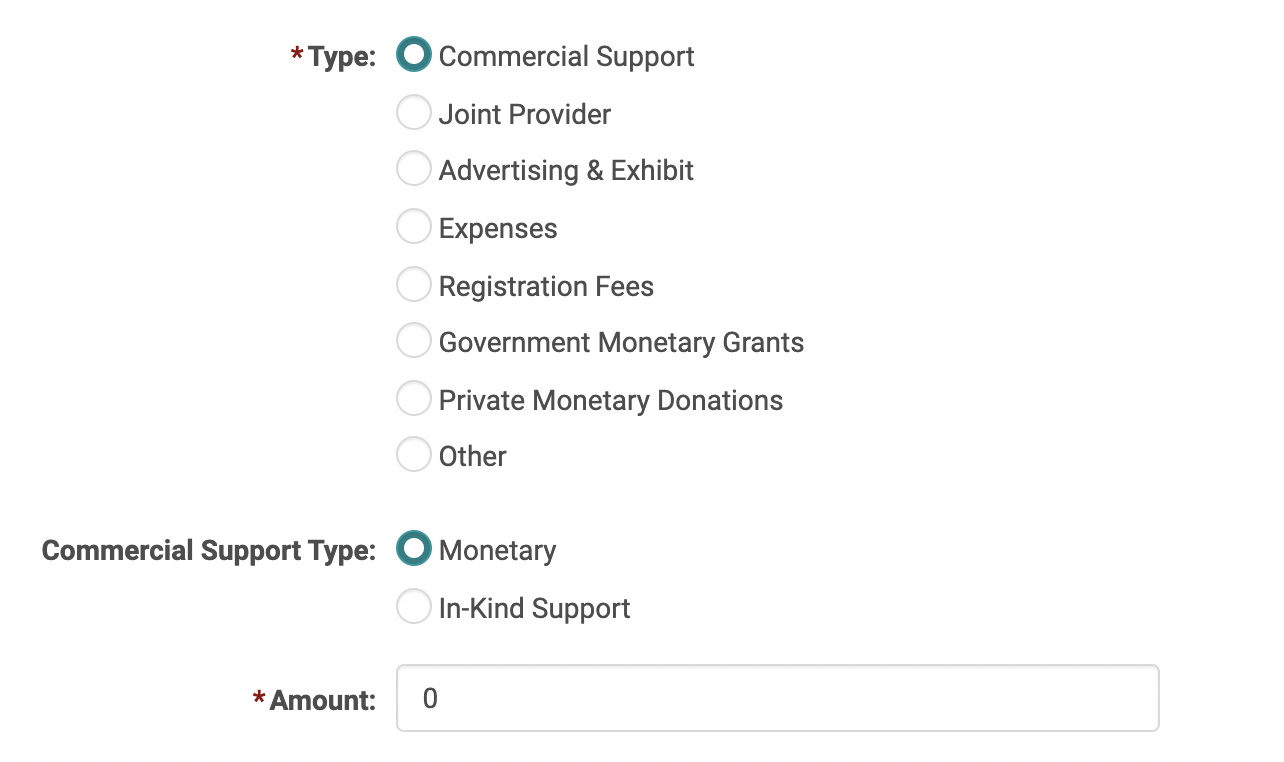
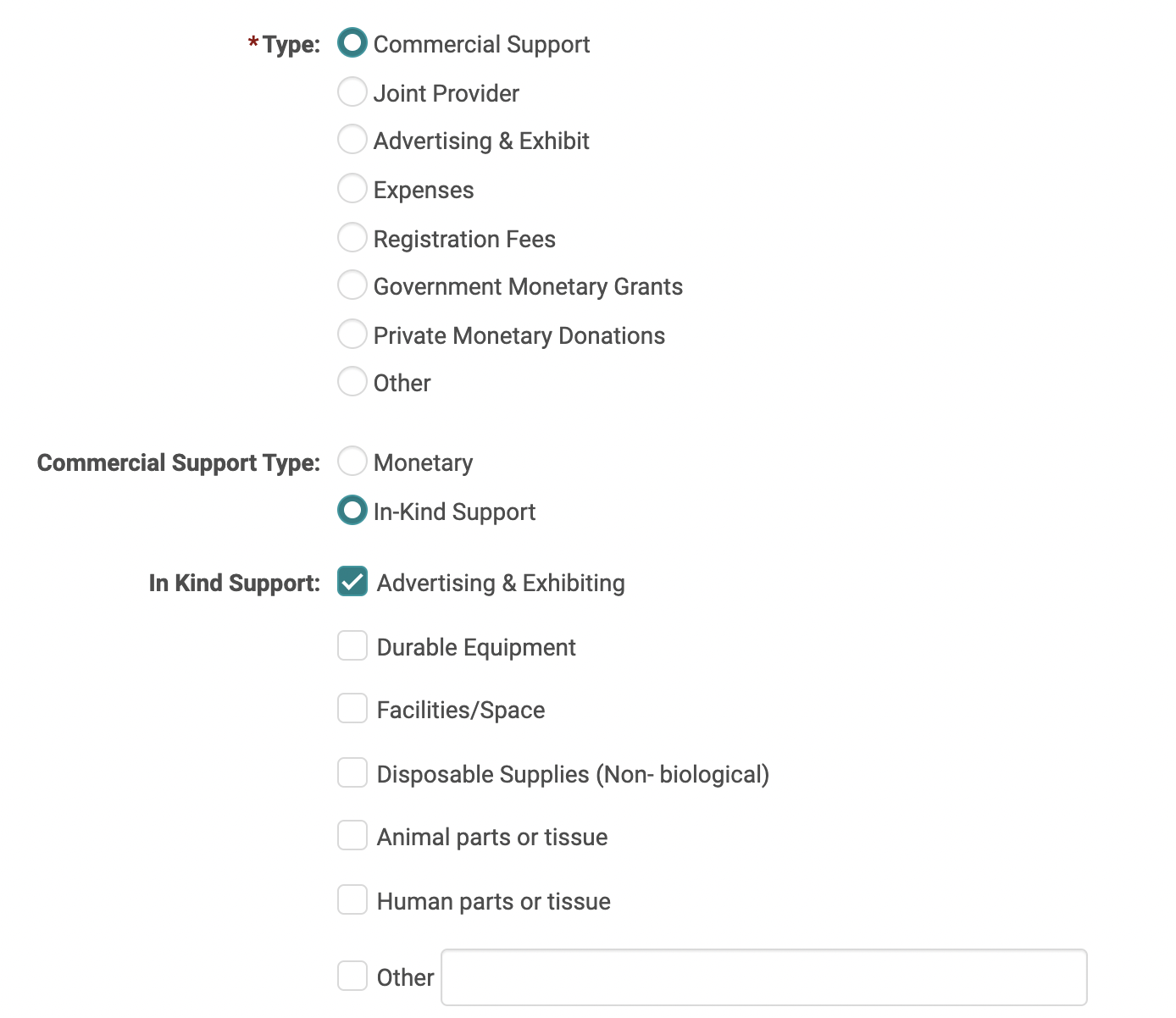
- IF Commercial Support is the type of financial selected, you will be able to select a secondary type of “Monetary” or In-Kind Support.”
- If Monetary is selected, you can enter the dollar amount.
- If In-Kind Support is selected, you will still have the option to select the type of in-kind support, however this will no longer be required as ACCME is no longer collecting the type of in-kind support, unless you are using the Tab-delimited report.
- If a financial type other than Commercial Support is selected, you will be able to enter a dollar amount but will not see the other fields mentioned above.
Commercial Support: Monetary
Commercial Support: In-Kind
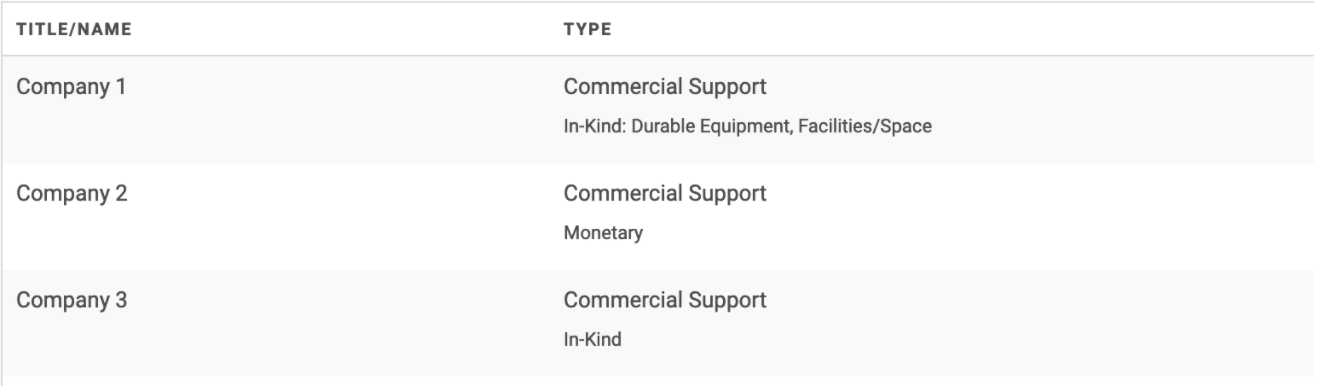
Financials Table
On the ‘Manage PARS’ screen, the Financials table has been updated to make the type of Commercial Support more intuitive. The type of commercial support will be specified in the ‘Type’ field and will also indicate the type of in-kind support if that is entered.
Archived PARS Data Link
There are several pieces of data that ACCME no longer requires and that have been removed from the new excel reports. You will still be able to view and collect this data in HighMarksCE. However, the location has moved in the interest of keeping the ‘Manage PARS’ screen consistent with the information ACCME is currently requiring.
Under the Activity Dashboard > PARS tab, there is a new link called “Archived PARS Data.” We have moved the following sections to be located on this new screen:
- Hours of Instruction
- Designed to Change
- Sub-Category
- Competencies/Demographics
Nothing has changed in terms of how this data is collected other than the fields being moved to this new screen. The intended used of this section is to:
- Allow you to view historical data for past activities where you collected this data
- Allow you to continue to collect this data if you choose
Note, if you continue to use the Tab-delimited report, ACCME may require you to continue reporting on these fields.
Other Reporting Settings
On the “Manage PARS” screen, we’ve added a new section called “Other Reporting Settings” where the following data will be collected:
- Who can register - The options are “Open to all” or “Limited”
- Fees for Learners - The options are “Yes,” “Variable,” or “No, it’s free”
- Include in CME Finder – Check the box to include in the CME Finder/CME Passport
- Register for MIPS – Check the box to register for MIPS
- Close Activity in PARS – Check the box to attempt to close the activity within PARS
Measured Outcomes
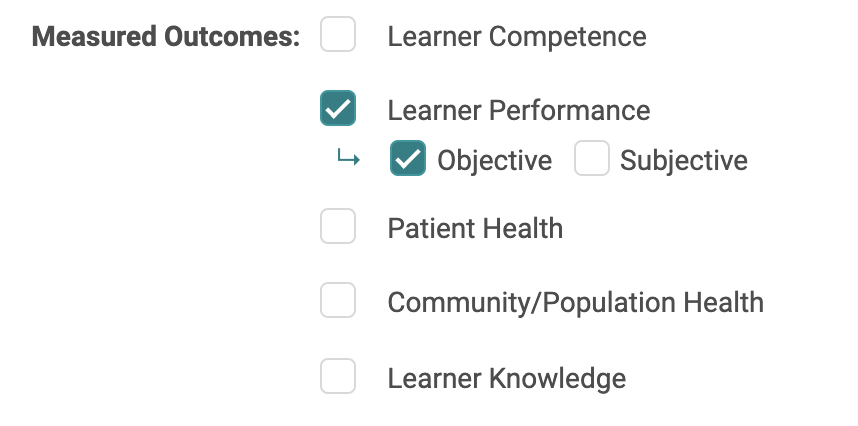
On the Activity Dashboard under “Manage PARS” there is a section for “Measured Outcomes” which effectively replaces the old “Evaluated” which has moved to the “Archived PARS Data” link.
Check off the measured outcome that best represents the activity. Once making a selection, you will be able to specify “Objective” or “Subjective.”
For activities where you have already collected the “Evaluated” data, we have mapped that data to “Measured Outcomes” so that it will be entered in both places. Please see the table below to see how the data was mapped. This mapping aligns with how ACCME maps the data.
Note, moving forward, if you add “Evaluated” data it will NOT automatically map to “Measured Outcomes.” You can, however, manually enter data for both sections if you choose.
|
Evaluated |
Maps to the below Measured Outcome |
|
Knowledge |
Learner Knowledge |
|
Competence |
Learner Competence |
|
Performance |
Learner Performance |
|
Patient Outcomes |
Patient Health |
JA-PARS Specific Updates
All changes described above are included for JA-PARS activities. Below are additional changes made specifically for JA-PARS activities.
Pharmacy Certificate Program
If you award CPE credits, we will add the following question to your Activity Pharmacy Information accreditation form:
“Is this activity part of the Pharmacy Certificate Program?” with the answer options Yes/No
This question is being added on a site-by-site basis for those awarding CPE credits. If you award CPE credits and don’t see this added on your test site, please reach out to your Project Manager.
Athletic Trainer
NOTE: some Athletic Trainer functionality requires site-specific configuration. Please contact your Project Manager if you are awarding credits for athletic trainers.
We have added the collection of Athletic Trainer data. If you award credits for athletic trainers, you will now be able to:
- Configure a claiming type for “Athletic Trainer” under “People“ > “Claiming Types.” Under “Add New Claiming Type” there will be an option to set the claiming type to Athletic Trainer = Yes.

- Once the above the claiming type is configured, the “Manage PARS” screen will have an input for collecting Athletic Trainer CEUs the same way we collect and calculate this for all other credit types.

- The “generated” amount reflects the number of credits assigned in the “Athletic Training” credit type configured for your site. The credit type names are variable, so this has to be configured on a site-by-site basis.
- On the “Manage PARS” screen, there is now an input for collecting total Athletic Trainer learners, the same way collect and calculate this for other credit types.
