Back end Setup:
Add all the required Accreditation Boards to the site under Settings > Accreditation Bodies
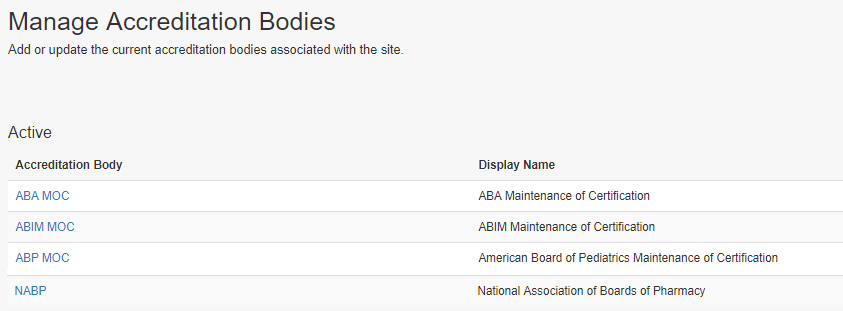
Set the rules for each of the boards with regards to the claiming types/Professions eligible for board certification and fields required to collect members’ board information.
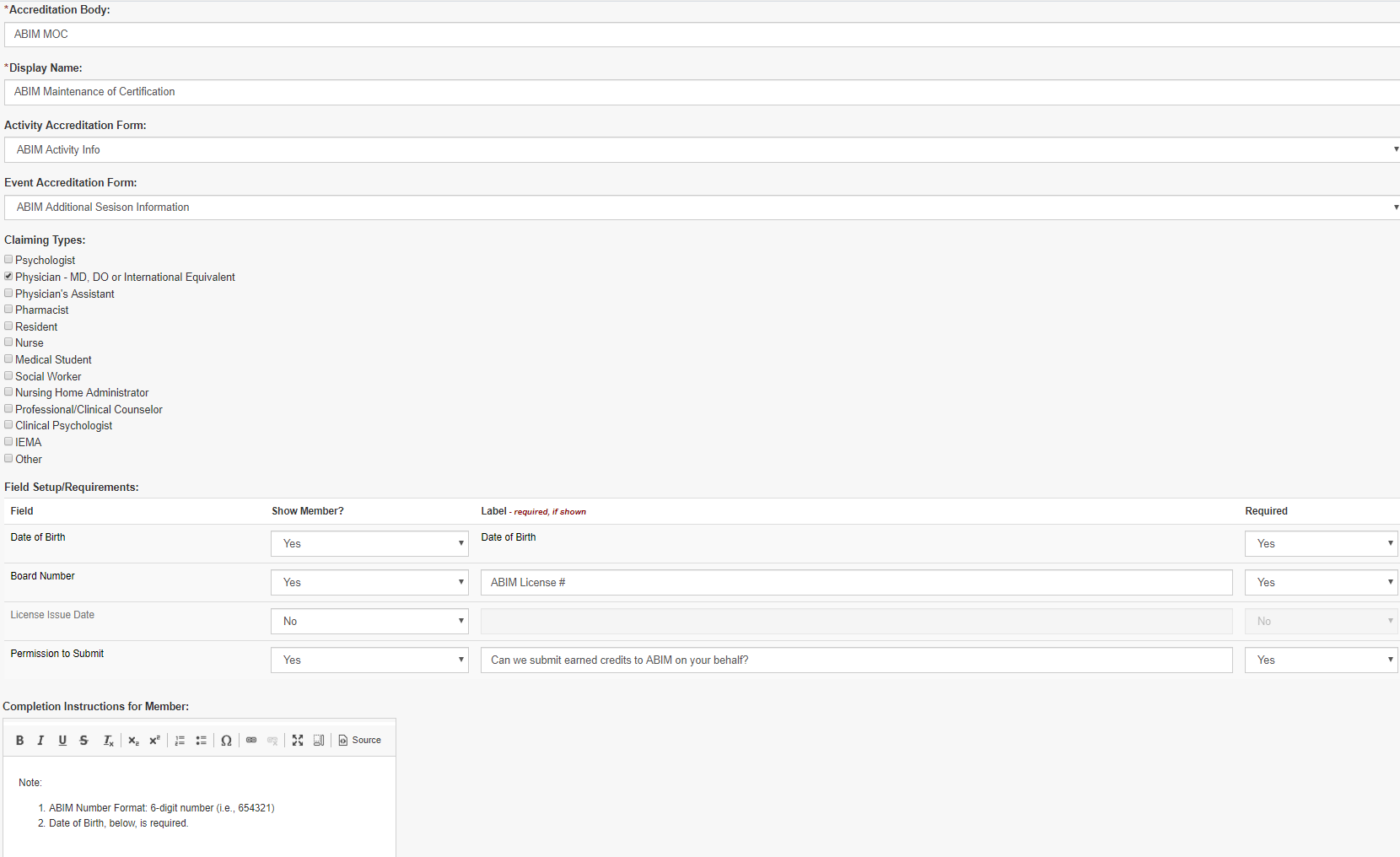
From the front end:
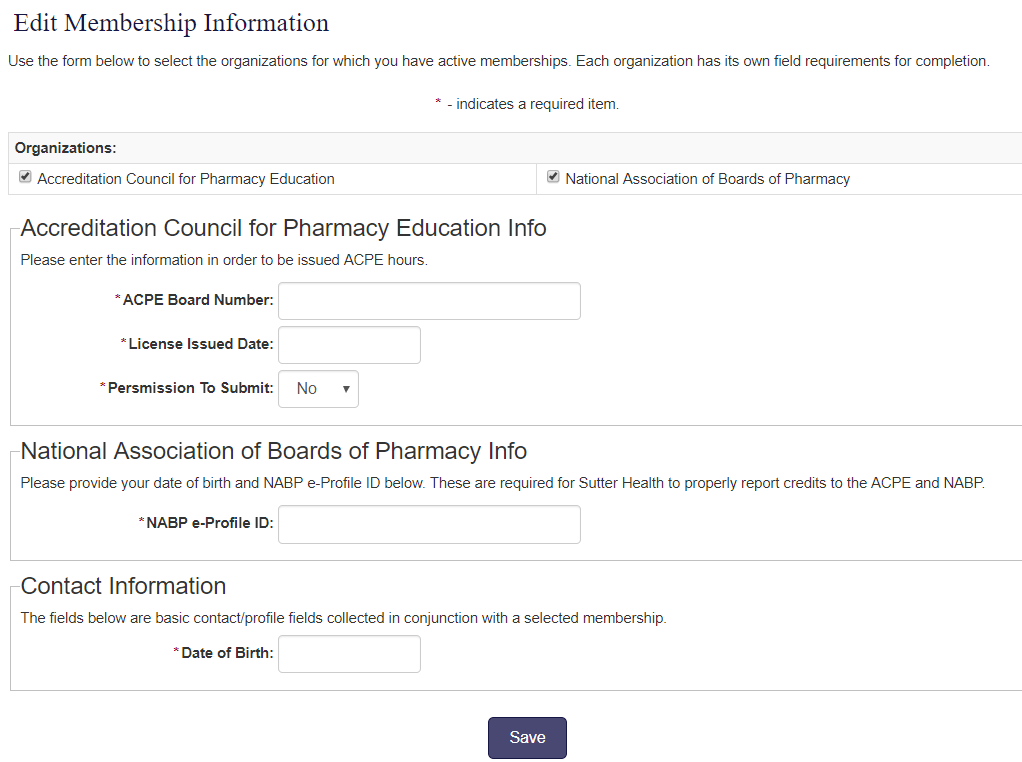
The front end user clicks on ‘Edit Membership Information’ on the Account page
Note: The label can be changed to suit client requirements.

Boards that match with the Claiming type/ Profession on a person’s profile will show for the user
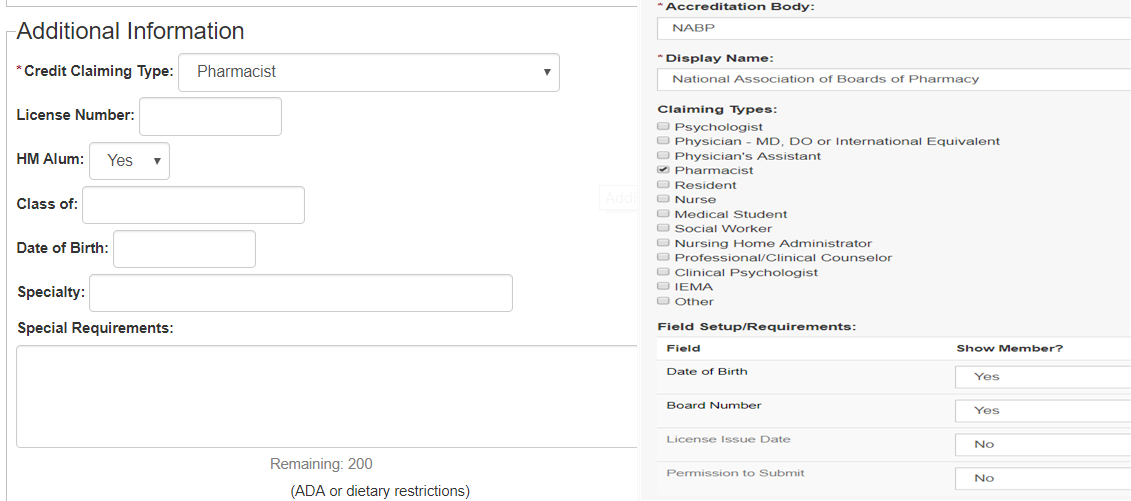
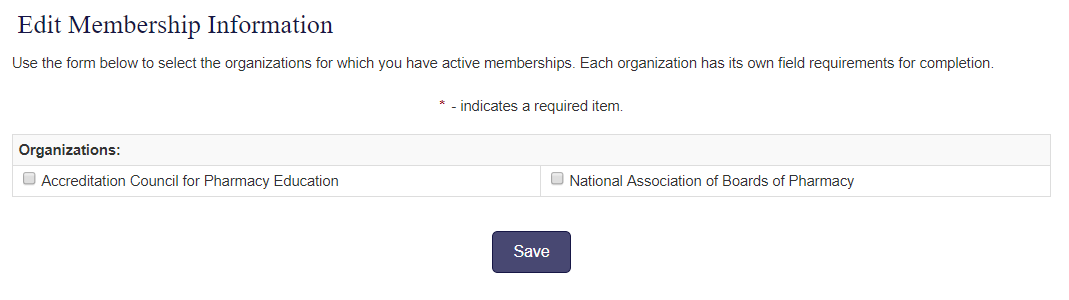
Users can check off the boards that they are associated with and enter the required information.
People > Credit Reports has the filters to include the selected Board information in the downloadable report.
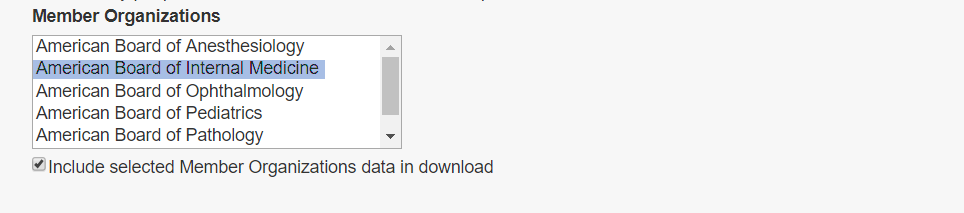
The downloaded report has the learner information for the selected Board.

If the claiming type or profession changes, the selected boards and information will be kept and shown until they are removed from the Person’s Board Information page. Un- check the board that the person is no longer associated with and save the page.