Attendance Management is used to record users who attended a particular Event/Session. If using the CE/CME Module, participants can also be recorded in an Event/Session with the appropriate Credit/Hours.
Users will automatically populate in this screen if you are using any of the following features:
- Self Claimed Credit
- Enduring Materials
- QR Code Mobile Check-in
- Manage Attendance Coordinator Check-in screen
Check with your Project Manager if you are unsure of which feature you are using.
To manually add a user to 'Attendance Management'
Go to Events/Sessions > use the text search option or 'Advanced Search' to find the Event/Session you want to add a user to
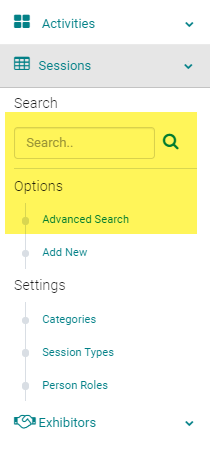
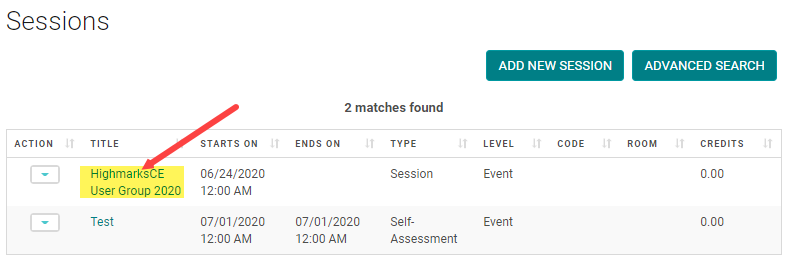
Click on the Title of the Session
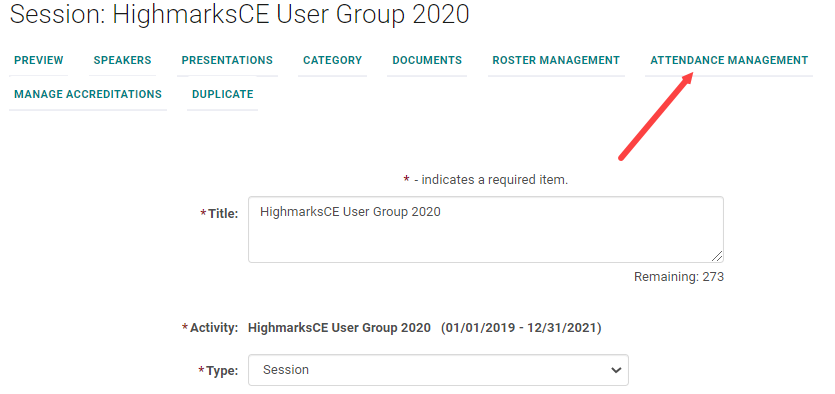
Click on the 'Attendance Management' button
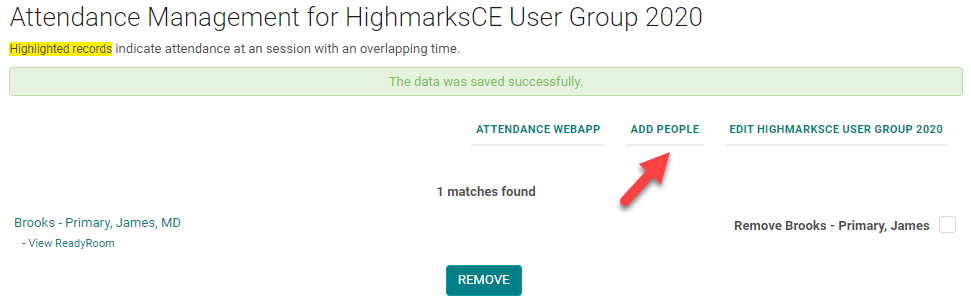
Click 'Add People'
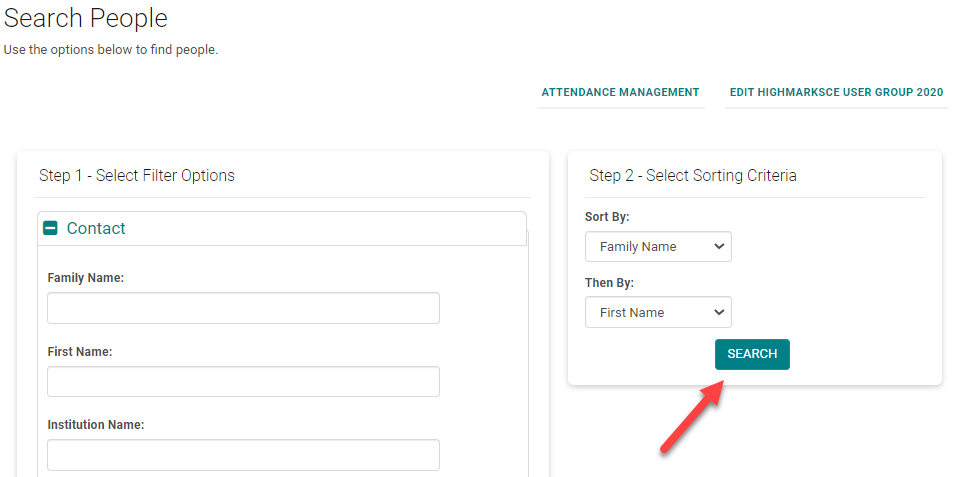
Use the Filter Options to find the user you want to add and click 'Search'
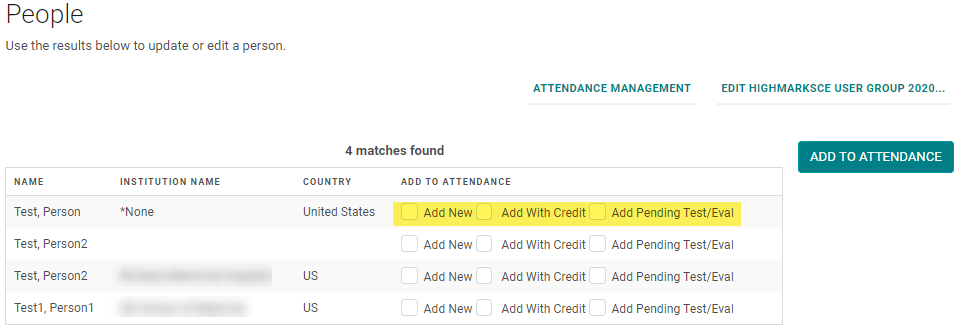
Select the appropriate option under the 'Add to Attendance' column header and click the 'Add to Attendance' button:
-
Add New - will simply record the user as "attended"
-
Add With Credit - will add the user with the appropriate Credit/Hours indicated in the Event/Session. The user will be able to see the credit from their 'My Credits' page.
- Add Pending Test/Eval - will add the user in a 'Pending' credit status until they complete the required Post-Test or Evaluation. The user will see the 'Pending Credits' section in their 'My Credits' page. NOTE: this feature must be set up by a Developer.
Confirm the user was added on the 'Attendance Management' screen
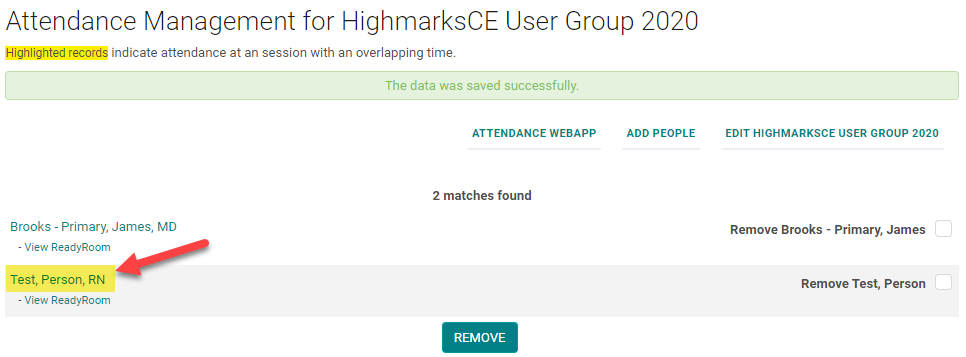
Check the box next to - Remove person name, the person is removed from the Session Attendance.