The Admin can provide the Activity Coordinators with Attendance rights that enable them to check-in attendees with credits added to their account.
Note: Use this link when it is mandatory for the the attendees to complete their post tests and evaluation before printing their certificate.
Attendance rights can be given to the Coordinator in two different ways -
1) If the Coordinators have the Session building rights, 'Attendance' option can be exposed for the Sessions.
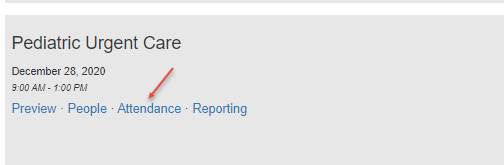
OR
2) Get the 'Manage Attendance URL' link as described below and email the link to the Coordinator.
Note: Enduring Materials do not use this option.
To get the link -
Search for the Activity
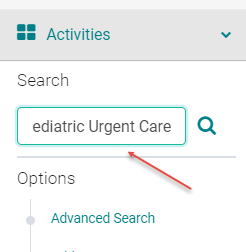
Select the Activity

Click on the session name

Scroll to the bottom of the page and copy the 'Manage Attendance URL'
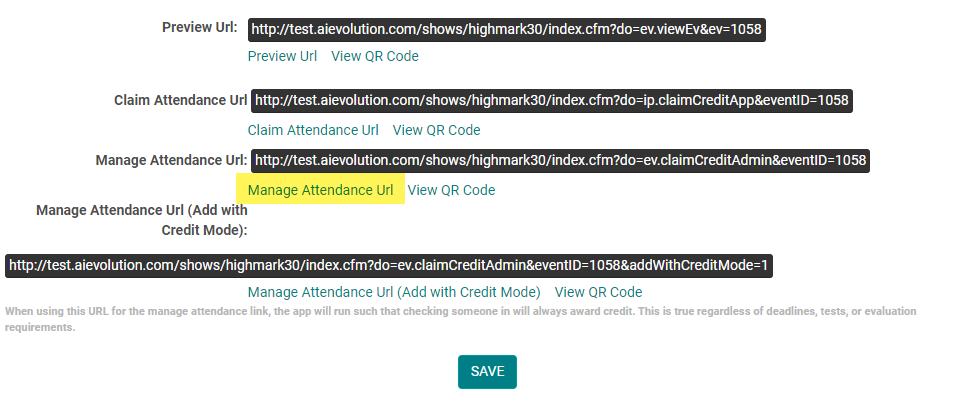
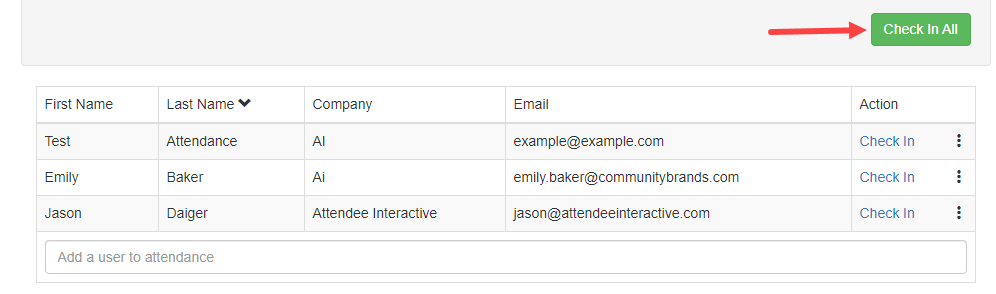
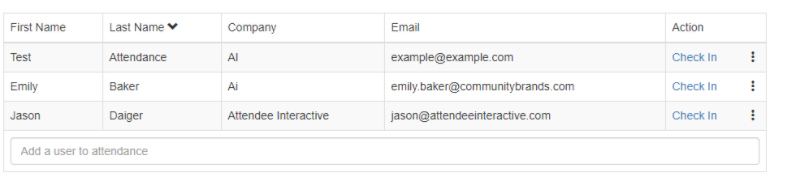
Send the link to the Activity/Event Coordinators. The link would enable the Coordinators to access the below page where they could add users to the attendance by searching for the person in the field indicated.
If the Activity has Registration, all the registrants would be listed on this page and the Admin can check them in individually or add the attendees by searching for the person in the field indicated.
Depending on the site configuration new Attendees not in the system can also be added to the attendance from this page.
In addition to the above link back end Admin has other other options to award credits in pending mode
Go to the Session > Manage Attendance > Attendance Webapp. This is exactly the same app accessed by the Coordinators.

OR
In the above screen click on Add People> search for the attendee> Choose the option Add Pending Test/Eval

When there is a session evaluation to complete, credits only get added to persons' records in pending mode. They are not awarded until the user completes the evaluation.

Award/Edit Partial Credit or Remove Credit or Remove person from the Activity altogether:
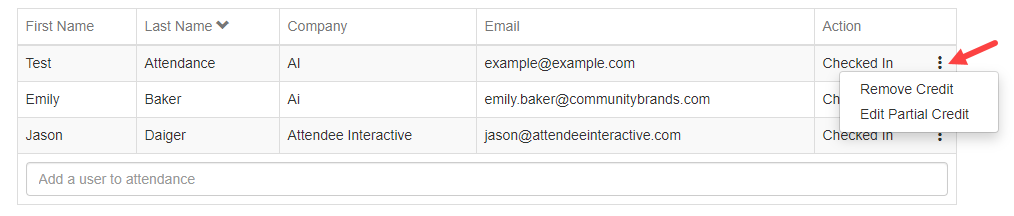
If you have to remove or edit persons credits click on the three dots next to checked in and click on 'Remove Credit' or 'Edit Partial Credit' as required.
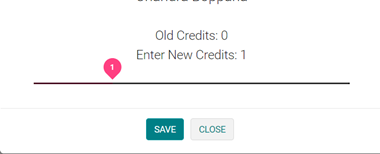
When clicked on 'Edit Partial Credit' Coordinator would see an option like shown on the screen below and will be able to adjust the hours as needed.
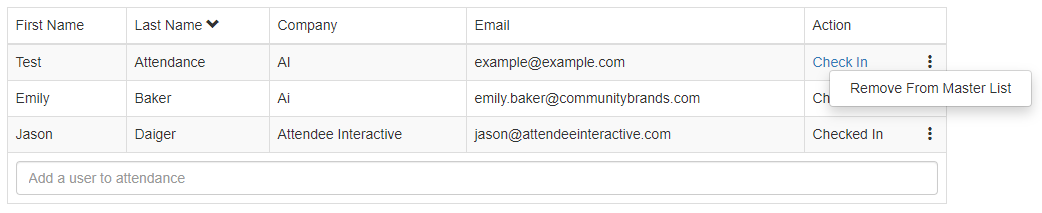
Clicking on 'Remove Credit' will move the person back to 'Check in' status from 'Checked in' status like shown below.
If you want to remove the user from the entire Activity altogether, click on the thee dots again next to 'Check in' and click on the 'Remove From Master List' . This removes the person from the entire Activity.
You will see the 'Check in All' link so that you could check back in all the other edited records in one go, without having to check in each individual person.