Note: Only users with existing account can check-in using a QR Code.
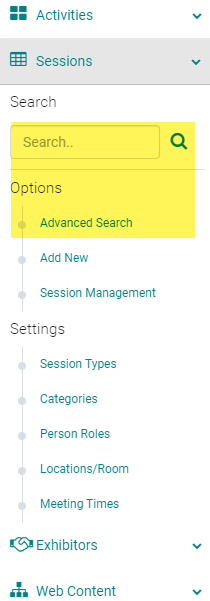
Go to Events/Sessions > use the text Search option or 'Advanced Search' to find the Event/Session you need the QR Code for Mobile Check-in
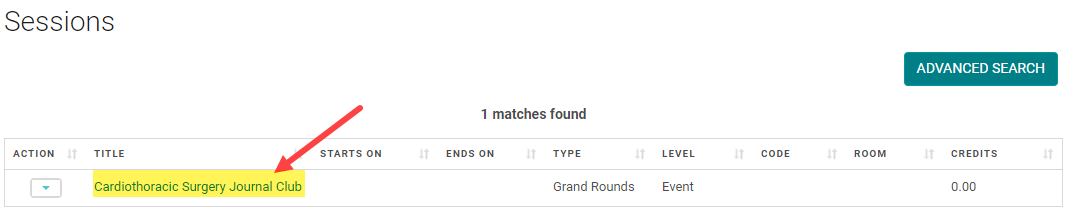
Click on the Event/Session 'Title'
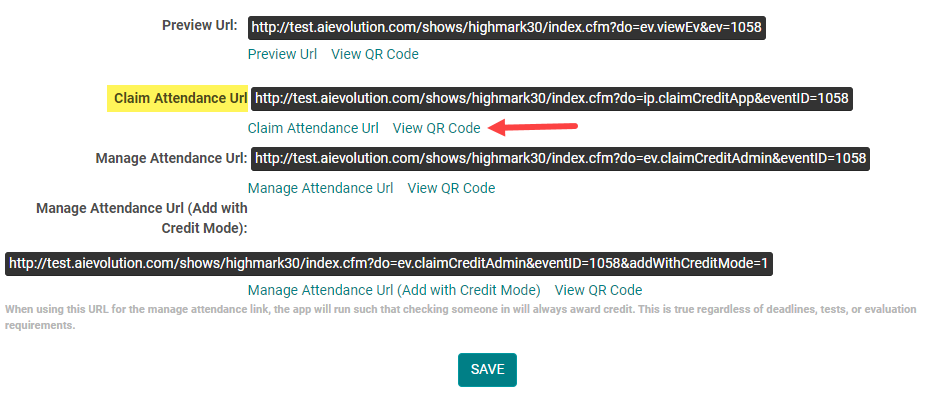
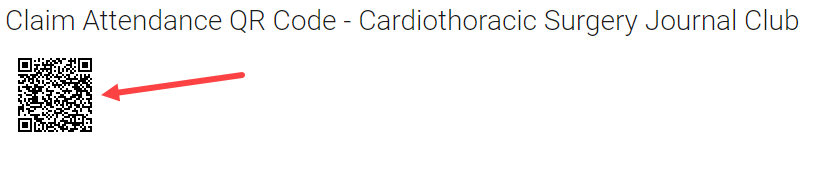
Scroll to the bottom of the screen and click on the 'View QR Code' link under the 'Claim Attendance Url' header
Save or Print the QR Code for distribution onsite at the Event/Session
NOTE: please test the QR Code to make sure all configurations for the Activity are set up properly. See below for additional details.
Users cannot claim credit under the following circumstances:
- Event/Session is flagged as Enduring Material = YES or Online Course= YES
- Before the Event/Session has Ends On Date/Time (This is possible based on site setting)
- Before the Activity 'View CME' Starts On Date/Time (This Date/Time should be set to the Date/Time you want the attendees to check-in using QR Code)
- After the Activity 'View CME' Ends On Date/Time (This Date/Time should be set to the Date/Time you want attendees to stop claiming)
- If Event/Session Starts On/Ends On Date/Time is outside the GLOBAL View CME meeting time, you cannot claim credit.
- The user does not have an account. The user has to create an account before using the QR Code.
What happens when a user checks-in using the QR Code?
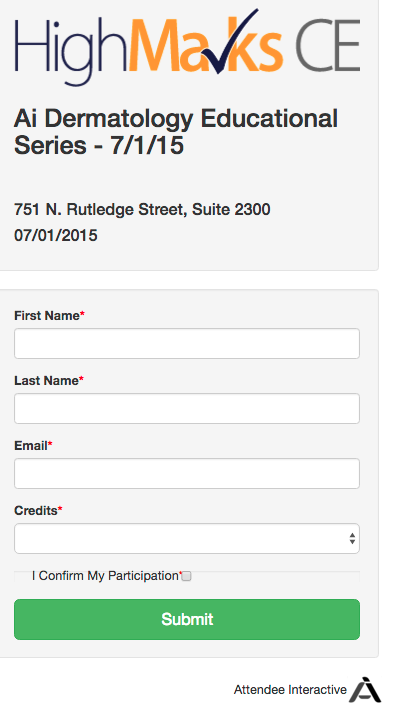
NOTE: The 'Credits' option is a setting that can be turned on or off depending on if you want to allow users to claim partial credit for an Event/Session, or not.
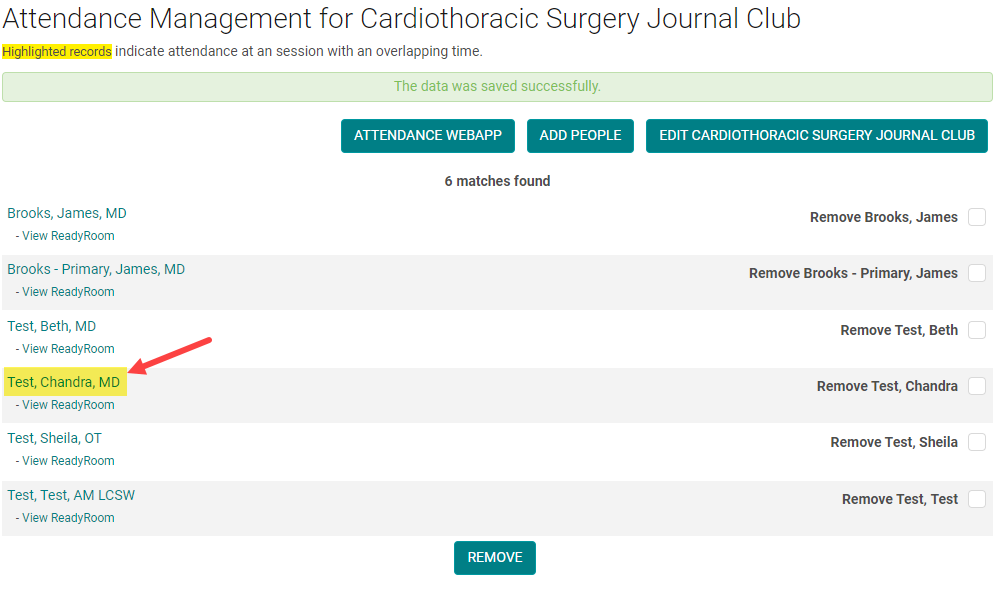
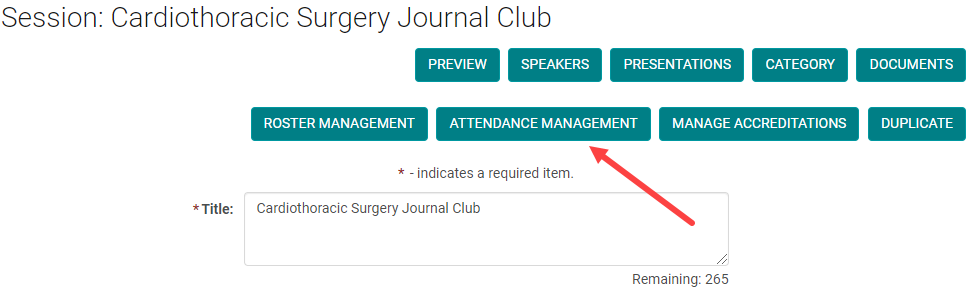
The user is added to the Event/Session under 'Attendance Management'
\