If your site uses the Claiming Attendance App or Manage Attendance App to check in attendees, we have added a functionality that will send a notification email to attendees upon check-in. This emails allows you to send information/instructions on credit claiming and additional steps that must be completed by attendees to receive their credit.
First, notify your Project Manager that you would like this functionality added to your site.
Second, you should decide if you want to use the default emails or activity specific emails.
Default email option: If the default emails are setup, then an email will be sent anytime credit is added or claimed via the apps. These emails are used for all activities.
Activity specific email option: If you would like to go with activity specific emails, you can create an email and link to the activity.
Both the options: Default emails are used for all the activities on which activity specific email is not added. Note: For this option to work correctly activity specific email has to be created and linked to the activity before Claiming Attendance App or Manage Attendance App are used to check in attendance.
Default email set up and usage
Below are the default emails that will be added to your site. You can change the text on these default emails to suit your business language.
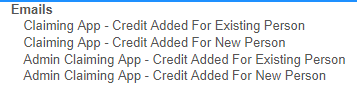
The below two email types are sent when the Claiming Attendance App is used to check in attendance.
- Claiming App - Credit Added for Existing Person
-
Claiming App - Credit Added for New person
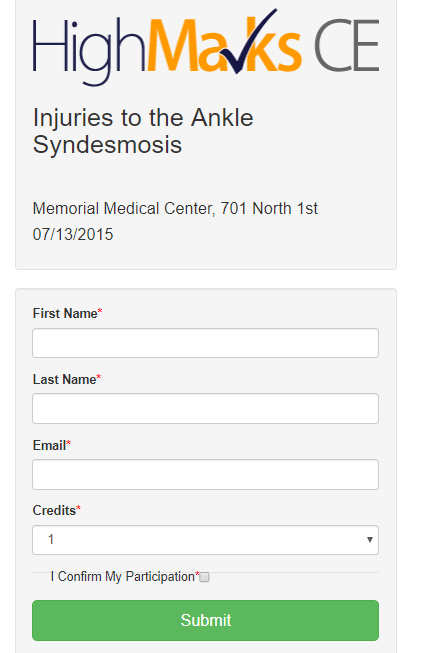
The below two email types are sent when the Onsite Admin or Coordinators use the Manage Attendance App to check in attendees. This is also sent when the back end Admin uses the Attendance Webapp from the Manage Attendance screen.
- Admin Claiming App - Credit Added for Existing Person
- Admin Claiming App - Credit Added for New person
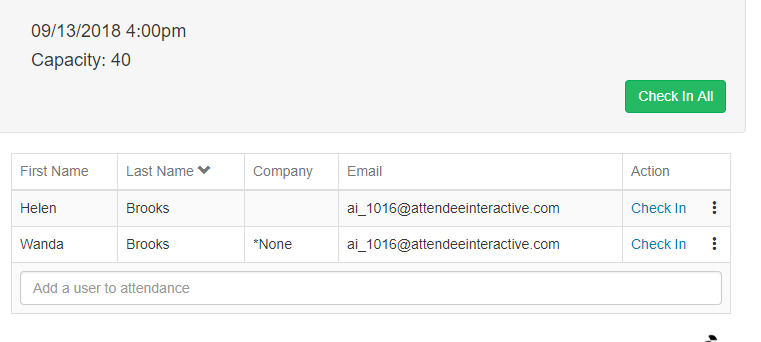
Note: System identifies if the person using the claiming app or the person being checked -in using the Manage Attendance App is an existing or a new user and the emails are auto sent.
Activity Specific emails setup
Step 1. Create an email or emails in 'Settings - Emails' that you would like to be sent when attendees are checked in.
Step 2. Select the Activity that you will utilize the check-in app and select 'Manage Activity Pages'.
Step 3. Select 'Add New', enter a title, and under 'Type', select Email type and under the 'Email' select the email you want to attach for this Activity and click 'Save'. You can create these activity specific emails by duplicating the template emails for the specific type.
Note: If you use the User ID and Password tags in your email we suggest you set up an email for both new and existing users. The system will send an email with a temporary password to new users and an email with a link to reset the password to existing users.
Depending on the Attendance app being used the system will send the active activity specific email.
Both default and Activity Specific emails set up
Sites can be configured to use both the default and activity specific emails. When a person is added or checked-in, the system will check for an activity specific emails. If one is found, the system will send the activity specific email. If no email was added to the activity, the default email is sent.